


If you’re an online seller who prefers talking to potential customers in real-time and loves the thrill of selling out your inventory quickly, then Whatnot might be your jam.
This online marketplace combines the fun of live-auction selling with traditional, static listings, making it ideal for all types of buyers.
In this guide, we’ll walk you through how Whatnot works for sellers and buyers by exploring what you can sell (and how), what the marketplace fees are, and whether the platform is right for you.
Key takeaways:
Whatnot is an online marketplace that combines live stream selling with static marketplace listings.
The platform charges a commission fee ranging from 4-8% on the selling price. There’s also a payment processing fee of 2.9% on the total order value + $0.30 transaction fee for US sellers.
Whatnot makes promoting and selling your products easy through a variety of promotion tools. Shipping your order is also less of a hassle since the platform provides prepaid shipping labels.
If you’re a multi-channel seller who has expanded your host of platforms to include Whatnot as well, use Crosslist to create and post static listings on Whatnot.
First things first: What is Whatnot?
Whatnot is an online reselling channel where users can buy and sell stuff, just like eBay, Etsy, or Poshmark.
The only difference is that Whatnot’s primary focus is live shopping, where sellers hold auctions through live streams.
However, the platform also has static marketplace listings similar to what you find on other marketplaces.
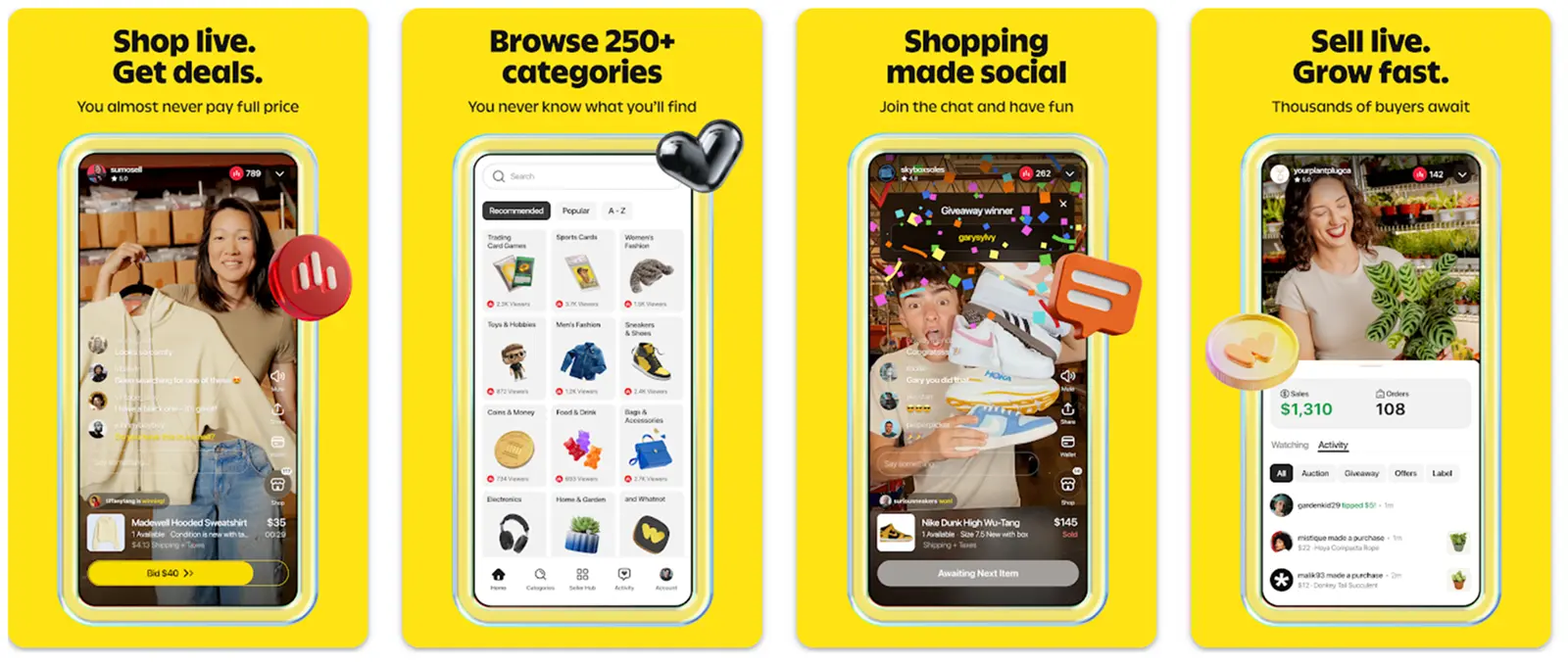
The focus on Whatnot is being a community-first marketplace where sellers and buyers can interact with each other in real-time and build strong relationships.
When buyers can see the sellers and speak to them live, it builds trust and loyalty, which means repeat customers!
Whatnot also aims to help sellers sell faster instead of listing items and waiting days or weeks for them to be sold.
In fact, the platform claims that sellers sell 10x faster when compared to their sales frequency on other platforms.
If live selling works for you on Whatnot, TikTok Shop is another marketplace built around video and live shopping.
Crosslist supports both, so you can cross list the same items to Whatnot and TikTok Shop, and Autodelist removes the item from your other marketplaces once it sells.
What can you sell (or buy) on Whatnot?

Whatnot supports 250+ product categories, ranging from collectibles and trading cards to everyday items.
It’s especially known for niche categories, such as estate sales and storage units, and trading card games.
Here are some of the popular products you can buy and sell on Whatnot:
Fashion, bags, and accessories
Toys and hobbies
Antique and vintage goods
Home and garden
Arts and handmade items
Coins and money (yep!)
Baby items
Pet goods
Electronics
Shoes and sneakers
Anime and manga
Beauty products
Food and drink
Whatnot also has some gated categories. You can only sell the products in these categories once you have Whatnot’s approval. They are:
Supplements
Luxury bags and accessories
Meat, seafood, and specialty products
Surprise sets in luxury bags and sneakers
How does Whatnot work for sellers?
To sell on Whatnot, you first need to sign up, apply to be a seller, and wait for the platform’s approval. In most cases, you get approval right away!
📝Note: It goes without saying that you must live in one of the approved countries where selling on Whatnot is supported.
Currently, that's the US, Canada, Australia, UK, Japan, and parts of the EU.
In your seller application, you’ll have to provide the following information: primary selling category, your previous seller experience (if any), full legal name, and return address.
Once your seller application is approved, you can start selling by using one of the two supported methods: live stream selling, or traditional marketplace listings.
Before we get into that, here’s a refresher on the types of listings supported by Whatnot.
Temporary listings: Only visible during the live show, meaning they vanish once the live stream ends
Quality listings: Visible during the live show and beyond, similar to the static listings that you create on other marketplaces
Now, each listing you create (be it Temporary or Quality) can also be set as one of the following, depending on the type of item you’re selling:
Auction: Buyers get to bid on the item, so the price increases as the bids increase
Buy-It-Now (BIN): These have a fixed price. If you set a Quality listing as BIN, it’ll be available even after your live shows, again, it’s like the static listings used to sell on other marketplaces
With this out of the way, let’s dive into the two types of selling supported by Whatnot:
Live stream selling
This is where you basically go live and sell your products on the spot. Users can interact with your live stream as soon as the show starts.
First, you need to schedule a live show and pick your primary selling category.
Adding a thumbnail and tags is optional, although we recommend doing so to give your scheduled show a boost in discoverability.
You can also add the listings of the products you plan on selling and adjust the shipping settings for the show.
The first will stock up your live show with a product inventory, making it easier for your audience to browse.
Add some show notes to let people know what they can expect from your show. Have a ready-made audience already?
Share the link to your scheduled show early, giving people the chance to bookmark it.
They’ll also get a notification when you go live, reducing the risk of your audience missing it.
During the live show, you should showcase your products from all angles, talking about their benefits and uses.
Be on the lookout for questions from potential buyers in the chat!
For iOS and Whatnot web users, there are two live stream tools that you can make use of during your shows.
Camera zoom: This lets you zoom in on your products, highlighting the finer details for your potential buyers. You can also zoom out to give everyone a wider view, perfect for when you’re trying to show how your items will fit into their lives. For example, showing a chair arranged in your living room
Facecam: This option lets you use both your front- and rear-facing camera at once. This way, you can show yourself to your viewers while simultaneously displaying your products
Auctions during live streams: Selling a rare or precious item? Have your buyers bid for it by starting an auction within your live show.
If you set an item up for auction before your live stream starts, buyers can place pre-bids on it.
When starting an auction, you’ll have to set the following details:
Starting bid: The amount at which you want the bidding to start. You should always be prepared for the eventuality of having your item sell for this price, so set the starting bid accordingly
Auction time: The minimum time you want your auction to run
Counter bid time: When there’s less than 10 seconds remaining in the auction, each new bid will reset the counter to the time you set
Sudden death (optional): If you don’t want your auction to extend beyond the time you set, choose the sudden death option. This automatically ends the auction when the time runs out, and the person who placed the highest bid before that wins
Whether buyers place incremental bids or custom bids, you’ll be able to see the amounts and the participants. As always, the highest bidder wins!
Traditional marketplace listings
If live selling isn’t your cup of tea, you can still use Whatnot to sell by making use of the traditional, static marketplace listings. Whatnot likes to call these Buy-It-Now (BIN) listings.
A BIN listing typically has product photos, description, categories, size, weight, price, etc., pretty much everything you’ll include in a traditional listing.
You can create BIN listings through a cross listing app like Crosslist to save time, especially if you also sell on other marketplaces.
Whatnot gives you two additional options for BIN listings:
Accept offers: If you turn on offers, your buyers will be able to make offers on the listing price (either a percentage discount or a custom price). For example, if the list price of a bracelet you’re selling is $50, buyers can send you an offer saying they’ll buy it for $45 or for a 10% discount. Don’t think their offer is reasonable? You can reject it or send in a counter-offer.
Flash sales: Flash sales let you sell your products at a discounted price for a limited duration, say 5 hours (for a Quality BIN listing) or 50 seconds (for a live stream listing). You can set the discount and the flash sale duration. You also have the option of making the listing available for purchase at full price after the flash sale ends. If you don’t want the same person stocking up on the discounted items, set a limit for the maximum number of units a buyer can purchase.
What happens after you sell something on Whatnot? Aka Whatnot shipping
Once you sell a product, you have to ship it out to the buyer within 2 business days of purchase.
Once the buyer confirms delivery, Whatnot will process your payments and move it to your available balance.
From here, you can request a payout to your bank account any time.
📝 Note: Whatnot has an Early Payout program, where you receive your funds as soon as you generate the shipping label.
To qualify for this program, you must have a stellar seller rating, have hosted a certain number of live shows, and have reached a certain lifetime milestone for qualifying sales.
Whatnot makes shipping easier for sellers with prepaid shipping labels.
You’re forced to use a Whatnot-generated shipping label unless you’ve already gotten approved for a Bring Your Own Label (BYOL).
📝 Note: BYOL is only available for specific sellers: those who sell in the wholesale category, sellers from France using Colissimo or Mondial Relay (for international orders), and sellers from Germany using DHL.
So, unless you fall into any of the above categories, it’s safe to assume that you’re stuck with Whatnot-generated labels.
The upside to this is that your shipping labels are taken care of, and your packages are tracked by Whatnot.
Shipping checklist: Before generating a shipping label, make sure that the order hasn’t been canceled, and that the item weight and dimensions are correct.
If you’re sending multiple packages to the same buyer, you can bundle them together and generate a single shipping label.
The final shipping cost for the bundle may be lower than what you would have to pay to ship them all separately.
If you have several fragile items that can’t be shipped together, or if you forgot to pack an item along with the others, you may have to unbundle your shipment (i.e. split a shipment into separate packages).
Note that this may cause your shipping fees to go up.
Generating the shipping label: Now, head to the Shipments page, filter by Needs label, and select the orders you want to generate the shipping label for.
Then, go to Shipping actions → Generate label. Once it’s ready, print it out.
Pack your shipments securely, and attach the shipping label to the package. Your package is now ready to be sent on its way!
You can either schedule a pickup with the shipping carrier, or drop it off with them.
All Whatnot-generated labels have shipment tracking, so you and your buyer can easily keep an eye on the package’s transit.
Whatnot fees for sellers
Whatnot charges sellers two types of fees: commission fees and payment processing fees.
The commission fee is calculated on the total sale price, while the payment processing fee is calculated on the total order value (selling price + shipping fees paid by the buyer + buyer-paid taxes such as sales tax or VAT).
These fees vary depending on your region and the type of products you’re selling. Here’s an overview:
US, Canada, and Australia
Category | Commission fee |
Comics, TCG, Sports Singles, Toys & Hobbies | 8% on final sale price up to $1,500; 0% on portion above $1,500 |
Coins and Money | 4% on final sale price up to $1,500; 0% on portion above $1,500 |
Pallets (Wholesale category) | 4% on final sale price |
All other categories | 8% on final sale price |
Electronics | 5% on final sale price |
The payment processing fee for the sales in all categories is: 2.9% on total order value + $0.30 transaction fee
EU and UK
Category | Commission fee |
Comics, TCG, Sports Singles, Toys & Hobbies | 6.67% + VAT on final sale price up to €/£1,500; 0% on portion above €/£1,500 |
Coins and Money | 4% + VAT on final sale price up to €/£1,500; 0% on portion above €/£1,500 |
All other categories | 6.67% + VAT on final sale price |
The payment processing fee for all types of sales is: 2.42% on total order value + €/£0.25 transaction fee + VAT
📝 Note: No seller fees are added to giveaways. You only have to pay for the shipping, and that’s it!
You can check your earnings (and a detailed fee breakdown) for each order by going to Seller Hub → Orders, selecting the order you want the breakdown for, and choosing Receipt and earning details.
Whatnot promotion tools for sellers
Whatnot has a few promotion tools that you can make use of to increase your discoverability, and, consequently, your sales.
Here’s an overview of these tools:
Promote Full Show: Increases the visibility of your live shows across Whatnot. Set an hourly budget, and get some placements in high-visibility locations to drive more viewers to your show.
Run a Boost: Gives up to a 15-minute surge in your visibility. Use this to promote an upcoming live show, or spread the word about a rare item that’s going to be sold in your live stream.
Community Boost: Allows your past buyers to support you for 15 minutes during live shows. Buyers who have already purchased from you in the past can make a Community Boost contributions. Once there are enough contributions, a special boost will be activated, promoting your show in the “For You” and Category feeds, bringing in new viewers.

💡 Expert tip: You can promote your traditional BIN listings on Whatnot with Crosslist by delisting and relisting your listings.
This gives you an SEO boost, helping new buyers discover your items and purchase them.
How does Whatnot work for buyers?
Whatnot is pretty straightforward for buyers.
All you need to do is create an account, update your details (such as shipping address, since buyers pay for the shipping on Whatnot), and start browsing for things to purchase!
As a buyer, you can:
Bookmark upcoming live shows and traditional marketplace listings
Bid on products during live shows, or pre-bid even before the show starts (if the seller is accepting pre-bids)
Switch on Max Bid, which will automatically keep increasing your bids in increments up to the maximum amount set by you
Send offers on marketplace listings
Enter giveaways to win free products
Share shows, follow your favorite sellers, contribute to Community Boosts, or tag someone on live shows
Tip a seller
Send a direct message to sellers
Use coupon codes for discounts
Earn rewards as part of the Rewards Club (you automatically join a seller’s Rewards Club when you make your first qualifying purchase from them)
Become a verified buyer
Watch a video receipt of your purchases made during live shows
Download your entire order history
Sell on Whatnot with Crosslist
Whatnot is a great reselling platform, both for those who prefer live selling, and those who would rather create traditional marketplace listings.
It’s especially great for sellers who sell niche items, sports memorabilia, or trading cards.
If you’re already selling on other platforms, or plan on expanding after establishing yourself on Whatnot, Crosslist is the right cross listing tool for you.
You can create your listing once and post it everywhere.
Crosslist also automatically delists your listings once you make a sale. No more checking and rechecking your orders to prevent double-selling.
Automate your listing process with Crosslist. Try risk-free.
If you’re an online seller who prefers talking to potential customers in real-time and loves the thrill of selling out your inventory quickly, then Whatnot might be your jam.
This online marketplace combines the fun of live-auction selling with traditional, static listings, making it ideal for all types of buyers.
In this guide, we’ll walk you through how Whatnot works for sellers and buyers by exploring what you can sell (and how), what the marketplace fees are, and whether the platform is right for you.
Key takeaways:
Whatnot is an online marketplace that combines live stream selling with static marketplace listings.
The platform charges a commission fee ranging from 4-8% on the selling price. There’s also a payment processing fee of 2.9% on the total order value + $0.30 transaction fee for US sellers.
Whatnot makes promoting and selling your products easy through a variety of promotion tools. Shipping your order is also less of a hassle since the platform provides prepaid shipping labels.
If you’re a multi-channel seller who has expanded your host of platforms to include Whatnot as well, use Crosslist to create and post static listings on Whatnot.
First things first: What is Whatnot?
Whatnot is an online reselling channel where users can buy and sell stuff, just like eBay, Etsy, or Poshmark.
The only difference is that Whatnot’s primary focus is live shopping, where sellers hold auctions through live streams.
However, the platform also has static marketplace listings similar to what you find on other marketplaces.
The focus on Whatnot is being a community-first marketplace where sellers and buyers can interact with each other in real-time and build strong relationships.
When buyers can see the sellers and speak to them live, it builds trust and loyalty, which means repeat customers!
Whatnot also aims to help sellers sell faster instead of listing items and waiting days or weeks for them to be sold.
In fact, the platform claims that sellers sell 10x faster when compared to their sales frequency on other platforms.
If live selling works for you on Whatnot, TikTok Shop is another marketplace built around video and live shopping.
Crosslist supports both, so you can cross list the same items to Whatnot and TikTok Shop, and Autodelist removes the item from your other marketplaces once it sells.
What can you sell (or buy) on Whatnot?
Whatnot supports 250+ product categories, ranging from collectibles and trading cards to everyday items.
It’s especially known for niche categories, such as estate sales and storage units, and trading card games.
Here are some of the popular products you can buy and sell on Whatnot:
Fashion, bags, and accessories
Toys and hobbies
Antique and vintage goods
Home and garden
Arts and handmade items
Coins and money (yep!)
Baby items
Pet goods
Electronics
Shoes and sneakers
Anime and manga
Beauty products
Food and drink
Whatnot also has some gated categories. You can only sell the products in these categories once you have Whatnot’s approval. They are:
Supplements
Luxury bags and accessories
Meat, seafood, and specialty products
Surprise sets in luxury bags and sneakers
How does Whatnot work for sellers?
To sell on Whatnot, you first need to sign up, apply to be a seller, and wait for the platform’s approval. In most cases, you get approval right away!
📝Note: It goes without saying that you must live in one of the approved countries where selling on Whatnot is supported.
Currently, that's the US, Canada, Australia, UK, Japan, and parts of the EU.
In your seller application, you’ll have to provide the following information: primary selling category, your previous seller experience (if any), full legal name, and return address.
Once your seller application is approved, you can start selling by using one of the two supported methods: live stream selling, or traditional marketplace listings.
Before we get into that, here’s a refresher on the types of listings supported by Whatnot.
Temporary listings: Only visible during the live show, meaning they vanish once the live stream ends
Quality listings: Visible during the live show and beyond, similar to the static listings that you create on other marketplaces
Now, each listing you create (be it Temporary or Quality) can also be set as one of the following, depending on the type of item you’re selling:
Auction: Buyers get to bid on the item, so the price increases as the bids increase
Buy-It-Now (BIN): These have a fixed price. If you set a Quality listing as BIN, it’ll be available even after your live shows, again, it’s like the static listings used to sell on other marketplaces
With this out of the way, let’s dive into the two types of selling supported by Whatnot:
Live stream selling
This is where you basically go live and sell your products on the spot. Users can interact with your live stream as soon as the show starts.
First, you need to schedule a live show and pick your primary selling category.
Adding a thumbnail and tags is optional, although we recommend doing so to give your scheduled show a boost in discoverability.
You can also add the listings of the products you plan on selling and adjust the shipping settings for the show.
The first will stock up your live show with a product inventory, making it easier for your audience to browse.
Add some show notes to let people know what they can expect from your show. Have a ready-made audience already?
Share the link to your scheduled show early, giving people the chance to bookmark it.
They’ll also get a notification when you go live, reducing the risk of your audience missing it.
During the live show, you should showcase your products from all angles, talking about their benefits and uses.
Be on the lookout for questions from potential buyers in the chat!
For iOS and Whatnot web users, there are two live stream tools that you can make use of during your shows.
Camera zoom: This lets you zoom in on your products, highlighting the finer details for your potential buyers. You can also zoom out to give everyone a wider view, perfect for when you’re trying to show how your items will fit into their lives. For example, showing a chair arranged in your living room
Facecam: This option lets you use both your front- and rear-facing camera at once. This way, you can show yourself to your viewers while simultaneously displaying your products
Auctions during live streams: Selling a rare or precious item? Have your buyers bid for it by starting an auction within your live show.
If you set an item up for auction before your live stream starts, buyers can place pre-bids on it.
When starting an auction, you’ll have to set the following details:
Starting bid: The amount at which you want the bidding to start. You should always be prepared for the eventuality of having your item sell for this price, so set the starting bid accordingly
Auction time: The minimum time you want your auction to run
Counter bid time: When there’s less than 10 seconds remaining in the auction, each new bid will reset the counter to the time you set
Sudden death (optional): If you don’t want your auction to extend beyond the time you set, choose the sudden death option. This automatically ends the auction when the time runs out, and the person who placed the highest bid before that wins
Whether buyers place incremental bids or custom bids, you’ll be able to see the amounts and the participants. As always, the highest bidder wins!
Traditional marketplace listings
If live selling isn’t your cup of tea, you can still use Whatnot to sell by making use of the traditional, static marketplace listings. Whatnot likes to call these Buy-It-Now (BIN) listings.
A BIN listing typically has product photos, description, categories, size, weight, price, etc., pretty much everything you’ll include in a traditional listing.
You can create BIN listings through a cross listing app like Crosslist to save time, especially if you also sell on other marketplaces.
Whatnot gives you two additional options for BIN listings:
Accept offers: If you turn on offers, your buyers will be able to make offers on the listing price (either a percentage discount or a custom price). For example, if the list price of a bracelet you’re selling is $50, buyers can send you an offer saying they’ll buy it for $45 or for a 10% discount. Don’t think their offer is reasonable? You can reject it or send in a counter-offer.
Flash sales: Flash sales let you sell your products at a discounted price for a limited duration, say 5 hours (for a Quality BIN listing) or 50 seconds (for a live stream listing). You can set the discount and the flash sale duration. You also have the option of making the listing available for purchase at full price after the flash sale ends. If you don’t want the same person stocking up on the discounted items, set a limit for the maximum number of units a buyer can purchase.
What happens after you sell something on Whatnot? Aka Whatnot shipping
Once you sell a product, you have to ship it out to the buyer within 2 business days of purchase.
Once the buyer confirms delivery, Whatnot will process your payments and move it to your available balance.
From here, you can request a payout to your bank account any time.
📝 Note: Whatnot has an Early Payout program, where you receive your funds as soon as you generate the shipping label.
To qualify for this program, you must have a stellar seller rating, have hosted a certain number of live shows, and have reached a certain lifetime milestone for qualifying sales.
Whatnot makes shipping easier for sellers with prepaid shipping labels.
You’re forced to use a Whatnot-generated shipping label unless you’ve already gotten approved for a Bring Your Own Label (BYOL).
📝 Note: BYOL is only available for specific sellers: those who sell in the wholesale category, sellers from France using Colissimo or Mondial Relay (for international orders), and sellers from Germany using DHL.
So, unless you fall into any of the above categories, it’s safe to assume that you’re stuck with Whatnot-generated labels.
The upside to this is that your shipping labels are taken care of, and your packages are tracked by Whatnot.
Shipping checklist: Before generating a shipping label, make sure that the order hasn’t been canceled, and that the item weight and dimensions are correct.
If you’re sending multiple packages to the same buyer, you can bundle them together and generate a single shipping label.
The final shipping cost for the bundle may be lower than what you would have to pay to ship them all separately.
If you have several fragile items that can’t be shipped together, or if you forgot to pack an item along with the others, you may have to unbundle your shipment (i.e. split a shipment into separate packages).
Note that this may cause your shipping fees to go up.
Generating the shipping label: Now, head to the Shipments page, filter by Needs label, and select the orders you want to generate the shipping label for.
Then, go to Shipping actions → Generate label. Once it’s ready, print it out.
Pack your shipments securely, and attach the shipping label to the package. Your package is now ready to be sent on its way!
You can either schedule a pickup with the shipping carrier, or drop it off with them.
All Whatnot-generated labels have shipment tracking, so you and your buyer can easily keep an eye on the package’s transit.
Whatnot fees for sellers
Whatnot charges sellers two types of fees: commission fees and payment processing fees.
The commission fee is calculated on the total sale price, while the payment processing fee is calculated on the total order value (selling price + shipping fees paid by the buyer + buyer-paid taxes such as sales tax or VAT).
These fees vary depending on your region and the type of products you’re selling. Here’s an overview:
US, Canada, and Australia
Category | Commission fee |
Comics, TCG, Sports Singles, Toys & Hobbies | 8% on final sale price up to $1,500; 0% on portion above $1,500 |
Coins and Money | 4% on final sale price up to $1,500; 0% on portion above $1,500 |
Pallets (Wholesale category) | 4% on final sale price |
All other categories | 8% on final sale price |
Electronics | 5% on final sale price |
The payment processing fee for the sales in all categories is: 2.9% on total order value + $0.30 transaction fee
EU and UK
Category | Commission fee |
Comics, TCG, Sports Singles, Toys & Hobbies | 6.67% + VAT on final sale price up to €/£1,500; 0% on portion above €/£1,500 |
Coins and Money | 4% + VAT on final sale price up to €/£1,500; 0% on portion above €/£1,500 |
All other categories | 6.67% + VAT on final sale price |
The payment processing fee for all types of sales is: 2.42% on total order value + €/£0.25 transaction fee + VAT
📝 Note: No seller fees are added to giveaways. You only have to pay for the shipping, and that’s it!
You can check your earnings (and a detailed fee breakdown) for each order by going to Seller Hub → Orders, selecting the order you want the breakdown for, and choosing Receipt and earning details.
Whatnot promotion tools for sellers
Whatnot has a few promotion tools that you can make use of to increase your discoverability, and, consequently, your sales.
Here’s an overview of these tools:
Promote Full Show: Increases the visibility of your live shows across Whatnot. Set an hourly budget, and get some placements in high-visibility locations to drive more viewers to your show.
Run a Boost: Gives up to a 15-minute surge in your visibility. Use this to promote an upcoming live show, or spread the word about a rare item that’s going to be sold in your live stream.
Community Boost: Allows your past buyers to support you for 15 minutes during live shows. Buyers who have already purchased from you in the past can make a Community Boost contributions. Once there are enough contributions, a special boost will be activated, promoting your show in the “For You” and Category feeds, bringing in new viewers.
💡 Expert tip: You can promote your traditional BIN listings on Whatnot with Crosslist by delisting and relisting your listings.
This gives you an SEO boost, helping new buyers discover your items and purchase them.
How does Whatnot work for buyers?
Whatnot is pretty straightforward for buyers.
All you need to do is create an account, update your details (such as shipping address, since buyers pay for the shipping on Whatnot), and start browsing for things to purchase!
As a buyer, you can:
Bookmark upcoming live shows and traditional marketplace listings
Bid on products during live shows, or pre-bid even before the show starts (if the seller is accepting pre-bids)
Switch on Max Bid, which will automatically keep increasing your bids in increments up to the maximum amount set by you
Send offers on marketplace listings
Enter giveaways to win free products
Share shows, follow your favorite sellers, contribute to Community Boosts, or tag someone on live shows
Tip a seller
Send a direct message to sellers
Use coupon codes for discounts
Earn rewards as part of the Rewards Club (you automatically join a seller’s Rewards Club when you make your first qualifying purchase from them)
Become a verified buyer
Watch a video receipt of your purchases made during live shows
Download your entire order history
Sell on Whatnot with Crosslist
Whatnot is a great reselling platform, both for those who prefer live selling, and those who would rather create traditional marketplace listings.
It’s especially great for sellers who sell niche items, sports memorabilia, or trading cards.
If you’re already selling on other platforms, or plan on expanding after establishing yourself on Whatnot, Crosslist is the right cross listing tool for you.
You can create your listing once and post it everywhere.
Crosslist also automatically delists your listings once you make a sale. No more checking and rechecking your orders to prevent double-selling.
Automate your listing process with Crosslist. Try risk-free.
If you’re an online seller who prefers talking to potential customers in real-time and loves the thrill of selling out your inventory quickly, then Whatnot might be your jam.
This online marketplace combines the fun of live-auction selling with traditional, static listings, making it ideal for all types of buyers.
In this guide, we’ll walk you through how Whatnot works for sellers and buyers by exploring what you can sell (and how), what the marketplace fees are, and whether the platform is right for you.
Key takeaways:
Whatnot is an online marketplace that combines live stream selling with static marketplace listings.
The platform charges a commission fee ranging from 4-8% on the selling price. There’s also a payment processing fee of 2.9% on the total order value + $0.30 transaction fee for US sellers.
Whatnot makes promoting and selling your products easy through a variety of promotion tools. Shipping your order is also less of a hassle since the platform provides prepaid shipping labels.
If you’re a multi-channel seller who has expanded your host of platforms to include Whatnot as well, use Crosslist to create and post static listings on Whatnot.
First things first: What is Whatnot?
Whatnot is an online reselling channel where users can buy and sell stuff, just like eBay, Etsy, or Poshmark.
The only difference is that Whatnot’s primary focus is live shopping, where sellers hold auctions through live streams.
However, the platform also has static marketplace listings similar to what you find on other marketplaces.
The focus on Whatnot is being a community-first marketplace where sellers and buyers can interact with each other in real-time and build strong relationships.
When buyers can see the sellers and speak to them live, it builds trust and loyalty, which means repeat customers!
Whatnot also aims to help sellers sell faster instead of listing items and waiting days or weeks for them to be sold.
In fact, the platform claims that sellers sell 10x faster when compared to their sales frequency on other platforms.
If live selling works for you on Whatnot, TikTok Shop is another marketplace built around video and live shopping.
Crosslist supports both, so you can cross list the same items to Whatnot and TikTok Shop, and Autodelist removes the item from your other marketplaces once it sells.
What can you sell (or buy) on Whatnot?
Whatnot supports 250+ product categories, ranging from collectibles and trading cards to everyday items.
It’s especially known for niche categories, such as estate sales and storage units, and trading card games.
Here are some of the popular products you can buy and sell on Whatnot:
Fashion, bags, and accessories
Toys and hobbies
Antique and vintage goods
Home and garden
Arts and handmade items
Coins and money (yep!)
Baby items
Pet goods
Electronics
Shoes and sneakers
Anime and manga
Beauty products
Food and drink
Whatnot also has some gated categories. You can only sell the products in these categories once you have Whatnot’s approval. They are:
Supplements
Luxury bags and accessories
Meat, seafood, and specialty products
Surprise sets in luxury bags and sneakers
How does Whatnot work for sellers?
To sell on Whatnot, you first need to sign up, apply to be a seller, and wait for the platform’s approval. In most cases, you get approval right away!
📝Note: It goes without saying that you must live in one of the approved countries where selling on Whatnot is supported.
Currently, that's the US, Canada, Australia, UK, Japan, and parts of the EU.
In your seller application, you’ll have to provide the following information: primary selling category, your previous seller experience (if any), full legal name, and return address.
Once your seller application is approved, you can start selling by using one of the two supported methods: live stream selling, or traditional marketplace listings.
Before we get into that, here’s a refresher on the types of listings supported by Whatnot.
Temporary listings: Only visible during the live show, meaning they vanish once the live stream ends
Quality listings: Visible during the live show and beyond, similar to the static listings that you create on other marketplaces
Now, each listing you create (be it Temporary or Quality) can also be set as one of the following, depending on the type of item you’re selling:
Auction: Buyers get to bid on the item, so the price increases as the bids increase
Buy-It-Now (BIN): These have a fixed price. If you set a Quality listing as BIN, it’ll be available even after your live shows, again, it’s like the static listings used to sell on other marketplaces
With this out of the way, let’s dive into the two types of selling supported by Whatnot:
Live stream selling
This is where you basically go live and sell your products on the spot. Users can interact with your live stream as soon as the show starts.
First, you need to schedule a live show and pick your primary selling category.
Adding a thumbnail and tags is optional, although we recommend doing so to give your scheduled show a boost in discoverability.
You can also add the listings of the products you plan on selling and adjust the shipping settings for the show.
The first will stock up your live show with a product inventory, making it easier for your audience to browse.
Add some show notes to let people know what they can expect from your show. Have a ready-made audience already?
Share the link to your scheduled show early, giving people the chance to bookmark it.
They’ll also get a notification when you go live, reducing the risk of your audience missing it.
During the live show, you should showcase your products from all angles, talking about their benefits and uses.
Be on the lookout for questions from potential buyers in the chat!
For iOS and Whatnot web users, there are two live stream tools that you can make use of during your shows.
Camera zoom: This lets you zoom in on your products, highlighting the finer details for your potential buyers. You can also zoom out to give everyone a wider view, perfect for when you’re trying to show how your items will fit into their lives. For example, showing a chair arranged in your living room
Facecam: This option lets you use both your front- and rear-facing camera at once. This way, you can show yourself to your viewers while simultaneously displaying your products
Auctions during live streams: Selling a rare or precious item? Have your buyers bid for it by starting an auction within your live show.
If you set an item up for auction before your live stream starts, buyers can place pre-bids on it.
When starting an auction, you’ll have to set the following details:
Starting bid: The amount at which you want the bidding to start. You should always be prepared for the eventuality of having your item sell for this price, so set the starting bid accordingly
Auction time: The minimum time you want your auction to run
Counter bid time: When there’s less than 10 seconds remaining in the auction, each new bid will reset the counter to the time you set
Sudden death (optional): If you don’t want your auction to extend beyond the time you set, choose the sudden death option. This automatically ends the auction when the time runs out, and the person who placed the highest bid before that wins
Whether buyers place incremental bids or custom bids, you’ll be able to see the amounts and the participants. As always, the highest bidder wins!
Traditional marketplace listings
If live selling isn’t your cup of tea, you can still use Whatnot to sell by making use of the traditional, static marketplace listings. Whatnot likes to call these Buy-It-Now (BIN) listings.
A BIN listing typically has product photos, description, categories, size, weight, price, etc., pretty much everything you’ll include in a traditional listing.
You can create BIN listings through a cross listing app like Crosslist to save time, especially if you also sell on other marketplaces.
Whatnot gives you two additional options for BIN listings:
Accept offers: If you turn on offers, your buyers will be able to make offers on the listing price (either a percentage discount or a custom price). For example, if the list price of a bracelet you’re selling is $50, buyers can send you an offer saying they’ll buy it for $45 or for a 10% discount. Don’t think their offer is reasonable? You can reject it or send in a counter-offer.
Flash sales: Flash sales let you sell your products at a discounted price for a limited duration, say 5 hours (for a Quality BIN listing) or 50 seconds (for a live stream listing). You can set the discount and the flash sale duration. You also have the option of making the listing available for purchase at full price after the flash sale ends. If you don’t want the same person stocking up on the discounted items, set a limit for the maximum number of units a buyer can purchase.
What happens after you sell something on Whatnot? Aka Whatnot shipping
Once you sell a product, you have to ship it out to the buyer within 2 business days of purchase.
Once the buyer confirms delivery, Whatnot will process your payments and move it to your available balance.
From here, you can request a payout to your bank account any time.
📝 Note: Whatnot has an Early Payout program, where you receive your funds as soon as you generate the shipping label.
To qualify for this program, you must have a stellar seller rating, have hosted a certain number of live shows, and have reached a certain lifetime milestone for qualifying sales.
Whatnot makes shipping easier for sellers with prepaid shipping labels.
You’re forced to use a Whatnot-generated shipping label unless you’ve already gotten approved for a Bring Your Own Label (BYOL).
📝 Note: BYOL is only available for specific sellers: those who sell in the wholesale category, sellers from France using Colissimo or Mondial Relay (for international orders), and sellers from Germany using DHL.
So, unless you fall into any of the above categories, it’s safe to assume that you’re stuck with Whatnot-generated labels.
The upside to this is that your shipping labels are taken care of, and your packages are tracked by Whatnot.
Shipping checklist: Before generating a shipping label, make sure that the order hasn’t been canceled, and that the item weight and dimensions are correct.
If you’re sending multiple packages to the same buyer, you can bundle them together and generate a single shipping label.
The final shipping cost for the bundle may be lower than what you would have to pay to ship them all separately.
If you have several fragile items that can’t be shipped together, or if you forgot to pack an item along with the others, you may have to unbundle your shipment (i.e. split a shipment into separate packages).
Note that this may cause your shipping fees to go up.
Generating the shipping label: Now, head to the Shipments page, filter by Needs label, and select the orders you want to generate the shipping label for.
Then, go to Shipping actions → Generate label. Once it’s ready, print it out.
Pack your shipments securely, and attach the shipping label to the package. Your package is now ready to be sent on its way!
You can either schedule a pickup with the shipping carrier, or drop it off with them.
All Whatnot-generated labels have shipment tracking, so you and your buyer can easily keep an eye on the package’s transit.
Whatnot fees for sellers
Whatnot charges sellers two types of fees: commission fees and payment processing fees.
The commission fee is calculated on the total sale price, while the payment processing fee is calculated on the total order value (selling price + shipping fees paid by the buyer + buyer-paid taxes such as sales tax or VAT).
These fees vary depending on your region and the type of products you’re selling. Here’s an overview:
US, Canada, and Australia
Category | Commission fee |
Comics, TCG, Sports Singles, Toys & Hobbies | 8% on final sale price up to $1,500; 0% on portion above $1,500 |
Coins and Money | 4% on final sale price up to $1,500; 0% on portion above $1,500 |
Pallets (Wholesale category) | 4% on final sale price |
All other categories | 8% on final sale price |
Electronics | 5% on final sale price |
The payment processing fee for the sales in all categories is: 2.9% on total order value + $0.30 transaction fee
EU and UK
Category | Commission fee |
Comics, TCG, Sports Singles, Toys & Hobbies | 6.67% + VAT on final sale price up to €/£1,500; 0% on portion above €/£1,500 |
Coins and Money | 4% + VAT on final sale price up to €/£1,500; 0% on portion above €/£1,500 |
All other categories | 6.67% + VAT on final sale price |
The payment processing fee for all types of sales is: 2.42% on total order value + €/£0.25 transaction fee + VAT
📝 Note: No seller fees are added to giveaways. You only have to pay for the shipping, and that’s it!
You can check your earnings (and a detailed fee breakdown) for each order by going to Seller Hub → Orders, selecting the order you want the breakdown for, and choosing Receipt and earning details.
Whatnot promotion tools for sellers
Whatnot has a few promotion tools that you can make use of to increase your discoverability, and, consequently, your sales.
Here’s an overview of these tools:
Promote Full Show: Increases the visibility of your live shows across Whatnot. Set an hourly budget, and get some placements in high-visibility locations to drive more viewers to your show.
Run a Boost: Gives up to a 15-minute surge in your visibility. Use this to promote an upcoming live show, or spread the word about a rare item that’s going to be sold in your live stream.
Community Boost: Allows your past buyers to support you for 15 minutes during live shows. Buyers who have already purchased from you in the past can make a Community Boost contributions. Once there are enough contributions, a special boost will be activated, promoting your show in the “For You” and Category feeds, bringing in new viewers.
💡 Expert tip: You can promote your traditional BIN listings on Whatnot with Crosslist by delisting and relisting your listings.
This gives you an SEO boost, helping new buyers discover your items and purchase them.
How does Whatnot work for buyers?
Whatnot is pretty straightforward for buyers.
All you need to do is create an account, update your details (such as shipping address, since buyers pay for the shipping on Whatnot), and start browsing for things to purchase!
As a buyer, you can:
Bookmark upcoming live shows and traditional marketplace listings
Bid on products during live shows, or pre-bid even before the show starts (if the seller is accepting pre-bids)
Switch on Max Bid, which will automatically keep increasing your bids in increments up to the maximum amount set by you
Send offers on marketplace listings
Enter giveaways to win free products
Share shows, follow your favorite sellers, contribute to Community Boosts, or tag someone on live shows
Tip a seller
Send a direct message to sellers
Use coupon codes for discounts
Earn rewards as part of the Rewards Club (you automatically join a seller’s Rewards Club when you make your first qualifying purchase from them)
Become a verified buyer
Watch a video receipt of your purchases made during live shows
Download your entire order history
Sell on Whatnot with Crosslist
Whatnot is a great reselling platform, both for those who prefer live selling, and those who would rather create traditional marketplace listings.
It’s especially great for sellers who sell niche items, sports memorabilia, or trading cards.
If you’re already selling on other platforms, or plan on expanding after establishing yourself on Whatnot, Crosslist is the right cross listing tool for you.
You can create your listing once and post it everywhere.
Crosslist also automatically delists your listings once you make a sale. No more checking and rechecking your orders to prevent double-selling.
Automate your listing process with Crosslist. Try risk-free.
If you’re an online seller who prefers talking to potential customers in real-time and loves the thrill of selling out your inventory quickly, then Whatnot might be your jam.
This online marketplace combines the fun of live-auction selling with traditional, static listings, making it ideal for all types of buyers.
In this guide, we’ll walk you through how Whatnot works for sellers and buyers by exploring what you can sell (and how), what the marketplace fees are, and whether the platform is right for you.
Key takeaways:
Whatnot is an online marketplace that combines live stream selling with static marketplace listings.
The platform charges a commission fee ranging from 4-8% on the selling price. There’s also a payment processing fee of 2.9% on the total order value + $0.30 transaction fee for US sellers.
Whatnot makes promoting and selling your products easy through a variety of promotion tools. Shipping your order is also less of a hassle since the platform provides prepaid shipping labels.
If you’re a multi-channel seller who has expanded your host of platforms to include Whatnot as well, use Crosslist to create and post static listings on Whatnot.
First things first: What is Whatnot?
Whatnot is an online reselling channel where users can buy and sell stuff, just like eBay, Etsy, or Poshmark.
The only difference is that Whatnot’s primary focus is live shopping, where sellers hold auctions through live streams.
However, the platform also has static marketplace listings similar to what you find on other marketplaces.
The focus on Whatnot is being a community-first marketplace where sellers and buyers can interact with each other in real-time and build strong relationships.
When buyers can see the sellers and speak to them live, it builds trust and loyalty, which means repeat customers!
Whatnot also aims to help sellers sell faster instead of listing items and waiting days or weeks for them to be sold.
In fact, the platform claims that sellers sell 10x faster when compared to their sales frequency on other platforms.
If live selling works for you on Whatnot, TikTok Shop is another marketplace built around video and live shopping.
Crosslist supports both, so you can cross list the same items to Whatnot and TikTok Shop, and Autodelist removes the item from your other marketplaces once it sells.
What can you sell (or buy) on Whatnot?
Whatnot supports 250+ product categories, ranging from collectibles and trading cards to everyday items.
It’s especially known for niche categories, such as estate sales and storage units, and trading card games.
Here are some of the popular products you can buy and sell on Whatnot:
Fashion, bags, and accessories
Toys and hobbies
Antique and vintage goods
Home and garden
Arts and handmade items
Coins and money (yep!)
Baby items
Pet goods
Electronics
Shoes and sneakers
Anime and manga
Beauty products
Food and drink
Whatnot also has some gated categories. You can only sell the products in these categories once you have Whatnot’s approval. They are:
Supplements
Luxury bags and accessories
Meat, seafood, and specialty products
Surprise sets in luxury bags and sneakers
How does Whatnot work for sellers?
To sell on Whatnot, you first need to sign up, apply to be a seller, and wait for the platform’s approval. In most cases, you get approval right away!
📝Note: It goes without saying that you must live in one of the approved countries where selling on Whatnot is supported.
Currently, that's the US, Canada, Australia, UK, Japan, and parts of the EU.
In your seller application, you’ll have to provide the following information: primary selling category, your previous seller experience (if any), full legal name, and return address.
Once your seller application is approved, you can start selling by using one of the two supported methods: live stream selling, or traditional marketplace listings.
Before we get into that, here’s a refresher on the types of listings supported by Whatnot.
Temporary listings: Only visible during the live show, meaning they vanish once the live stream ends
Quality listings: Visible during the live show and beyond, similar to the static listings that you create on other marketplaces
Now, each listing you create (be it Temporary or Quality) can also be set as one of the following, depending on the type of item you’re selling:
Auction: Buyers get to bid on the item, so the price increases as the bids increase
Buy-It-Now (BIN): These have a fixed price. If you set a Quality listing as BIN, it’ll be available even after your live shows, again, it’s like the static listings used to sell on other marketplaces
With this out of the way, let’s dive into the two types of selling supported by Whatnot:
Live stream selling
This is where you basically go live and sell your products on the spot. Users can interact with your live stream as soon as the show starts.
First, you need to schedule a live show and pick your primary selling category.
Adding a thumbnail and tags is optional, although we recommend doing so to give your scheduled show a boost in discoverability.
You can also add the listings of the products you plan on selling and adjust the shipping settings for the show.
The first will stock up your live show with a product inventory, making it easier for your audience to browse.
Add some show notes to let people know what they can expect from your show. Have a ready-made audience already?
Share the link to your scheduled show early, giving people the chance to bookmark it.
They’ll also get a notification when you go live, reducing the risk of your audience missing it.
During the live show, you should showcase your products from all angles, talking about their benefits and uses.
Be on the lookout for questions from potential buyers in the chat!
For iOS and Whatnot web users, there are two live stream tools that you can make use of during your shows.
Camera zoom: This lets you zoom in on your products, highlighting the finer details for your potential buyers. You can also zoom out to give everyone a wider view, perfect for when you’re trying to show how your items will fit into their lives. For example, showing a chair arranged in your living room
Facecam: This option lets you use both your front- and rear-facing camera at once. This way, you can show yourself to your viewers while simultaneously displaying your products
Auctions during live streams: Selling a rare or precious item? Have your buyers bid for it by starting an auction within your live show.
If you set an item up for auction before your live stream starts, buyers can place pre-bids on it.
When starting an auction, you’ll have to set the following details:
Starting bid: The amount at which you want the bidding to start. You should always be prepared for the eventuality of having your item sell for this price, so set the starting bid accordingly
Auction time: The minimum time you want your auction to run
Counter bid time: When there’s less than 10 seconds remaining in the auction, each new bid will reset the counter to the time you set
Sudden death (optional): If you don’t want your auction to extend beyond the time you set, choose the sudden death option. This automatically ends the auction when the time runs out, and the person who placed the highest bid before that wins
Whether buyers place incremental bids or custom bids, you’ll be able to see the amounts and the participants. As always, the highest bidder wins!
Traditional marketplace listings
If live selling isn’t your cup of tea, you can still use Whatnot to sell by making use of the traditional, static marketplace listings. Whatnot likes to call these Buy-It-Now (BIN) listings.
A BIN listing typically has product photos, description, categories, size, weight, price, etc., pretty much everything you’ll include in a traditional listing.
You can create BIN listings through a cross listing app like Crosslist to save time, especially if you also sell on other marketplaces.
Whatnot gives you two additional options for BIN listings:
Accept offers: If you turn on offers, your buyers will be able to make offers on the listing price (either a percentage discount or a custom price). For example, if the list price of a bracelet you’re selling is $50, buyers can send you an offer saying they’ll buy it for $45 or for a 10% discount. Don’t think their offer is reasonable? You can reject it or send in a counter-offer.
Flash sales: Flash sales let you sell your products at a discounted price for a limited duration, say 5 hours (for a Quality BIN listing) or 50 seconds (for a live stream listing). You can set the discount and the flash sale duration. You also have the option of making the listing available for purchase at full price after the flash sale ends. If you don’t want the same person stocking up on the discounted items, set a limit for the maximum number of units a buyer can purchase.
What happens after you sell something on Whatnot? Aka Whatnot shipping
Once you sell a product, you have to ship it out to the buyer within 2 business days of purchase.
Once the buyer confirms delivery, Whatnot will process your payments and move it to your available balance.
From here, you can request a payout to your bank account any time.
📝 Note: Whatnot has an Early Payout program, where you receive your funds as soon as you generate the shipping label.
To qualify for this program, you must have a stellar seller rating, have hosted a certain number of live shows, and have reached a certain lifetime milestone for qualifying sales.
Whatnot makes shipping easier for sellers with prepaid shipping labels.
You’re forced to use a Whatnot-generated shipping label unless you’ve already gotten approved for a Bring Your Own Label (BYOL).
📝 Note: BYOL is only available for specific sellers: those who sell in the wholesale category, sellers from France using Colissimo or Mondial Relay (for international orders), and sellers from Germany using DHL.
So, unless you fall into any of the above categories, it’s safe to assume that you’re stuck with Whatnot-generated labels.
The upside to this is that your shipping labels are taken care of, and your packages are tracked by Whatnot.
Shipping checklist: Before generating a shipping label, make sure that the order hasn’t been canceled, and that the item weight and dimensions are correct.
If you’re sending multiple packages to the same buyer, you can bundle them together and generate a single shipping label.
The final shipping cost for the bundle may be lower than what you would have to pay to ship them all separately.
If you have several fragile items that can’t be shipped together, or if you forgot to pack an item along with the others, you may have to unbundle your shipment (i.e. split a shipment into separate packages).
Note that this may cause your shipping fees to go up.
Generating the shipping label: Now, head to the Shipments page, filter by Needs label, and select the orders you want to generate the shipping label for.
Then, go to Shipping actions → Generate label. Once it’s ready, print it out.
Pack your shipments securely, and attach the shipping label to the package. Your package is now ready to be sent on its way!
You can either schedule a pickup with the shipping carrier, or drop it off with them.
All Whatnot-generated labels have shipment tracking, so you and your buyer can easily keep an eye on the package’s transit.
Whatnot fees for sellers
Whatnot charges sellers two types of fees: commission fees and payment processing fees.
The commission fee is calculated on the total sale price, while the payment processing fee is calculated on the total order value (selling price + shipping fees paid by the buyer + buyer-paid taxes such as sales tax or VAT).
These fees vary depending on your region and the type of products you’re selling. Here’s an overview:
US, Canada, and Australia
Category | Commission fee |
Comics, TCG, Sports Singles, Toys & Hobbies | 8% on final sale price up to $1,500; 0% on portion above $1,500 |
Coins and Money | 4% on final sale price up to $1,500; 0% on portion above $1,500 |
Pallets (Wholesale category) | 4% on final sale price |
All other categories | 8% on final sale price |
Electronics | 5% on final sale price |
The payment processing fee for the sales in all categories is: 2.9% on total order value + $0.30 transaction fee
EU and UK
Category | Commission fee |
Comics, TCG, Sports Singles, Toys & Hobbies | 6.67% + VAT on final sale price up to €/£1,500; 0% on portion above €/£1,500 |
Coins and Money | 4% + VAT on final sale price up to €/£1,500; 0% on portion above €/£1,500 |
All other categories | 6.67% + VAT on final sale price |
The payment processing fee for all types of sales is: 2.42% on total order value + €/£0.25 transaction fee + VAT
📝 Note: No seller fees are added to giveaways. You only have to pay for the shipping, and that’s it!
You can check your earnings (and a detailed fee breakdown) for each order by going to Seller Hub → Orders, selecting the order you want the breakdown for, and choosing Receipt and earning details.
Whatnot promotion tools for sellers
Whatnot has a few promotion tools that you can make use of to increase your discoverability, and, consequently, your sales.
Here’s an overview of these tools:
Promote Full Show: Increases the visibility of your live shows across Whatnot. Set an hourly budget, and get some placements in high-visibility locations to drive more viewers to your show.
Run a Boost: Gives up to a 15-minute surge in your visibility. Use this to promote an upcoming live show, or spread the word about a rare item that’s going to be sold in your live stream.
Community Boost: Allows your past buyers to support you for 15 minutes during live shows. Buyers who have already purchased from you in the past can make a Community Boost contributions. Once there are enough contributions, a special boost will be activated, promoting your show in the “For You” and Category feeds, bringing in new viewers.
💡 Expert tip: You can promote your traditional BIN listings on Whatnot with Crosslist by delisting and relisting your listings.
This gives you an SEO boost, helping new buyers discover your items and purchase them.
How does Whatnot work for buyers?
Whatnot is pretty straightforward for buyers.
All you need to do is create an account, update your details (such as shipping address, since buyers pay for the shipping on Whatnot), and start browsing for things to purchase!
As a buyer, you can:
Bookmark upcoming live shows and traditional marketplace listings
Bid on products during live shows, or pre-bid even before the show starts (if the seller is accepting pre-bids)
Switch on Max Bid, which will automatically keep increasing your bids in increments up to the maximum amount set by you
Send offers on marketplace listings
Enter giveaways to win free products
Share shows, follow your favorite sellers, contribute to Community Boosts, or tag someone on live shows
Tip a seller
Send a direct message to sellers
Use coupon codes for discounts
Earn rewards as part of the Rewards Club (you automatically join a seller’s Rewards Club when you make your first qualifying purchase from them)
Become a verified buyer
Watch a video receipt of your purchases made during live shows
Download your entire order history
Sell on Whatnot with Crosslist
Whatnot is a great reselling platform, both for those who prefer live selling, and those who would rather create traditional marketplace listings.
It’s especially great for sellers who sell niche items, sports memorabilia, or trading cards.
If you’re already selling on other platforms, or plan on expanding after establishing yourself on Whatnot, Crosslist is the right cross listing tool for you.
You can create your listing once and post it everywhere.
Crosslist also automatically delists your listings once you make a sale. No more checking and rechecking your orders to prevent double-selling.
Automate your listing process with Crosslist. Try risk-free.