


Maybe you finally bagged that store space you were dreaming about and are ready to expand your online business to an in-person brick-and-mortar store. Or, maybe you have some in-person pop-ups lined up and need an easier way of collecting payments from customers.
Either way, if you run an e-commerce store powered by Shopify, and are looking to sell in-person, too, then Shopify’s point of sale (POS) system is the natural (and easy) choice.
In this guide, we walk you through how Shopify POS works, how to set it up, and how much it will cost you.
What is Shopify POS? Who needs it?
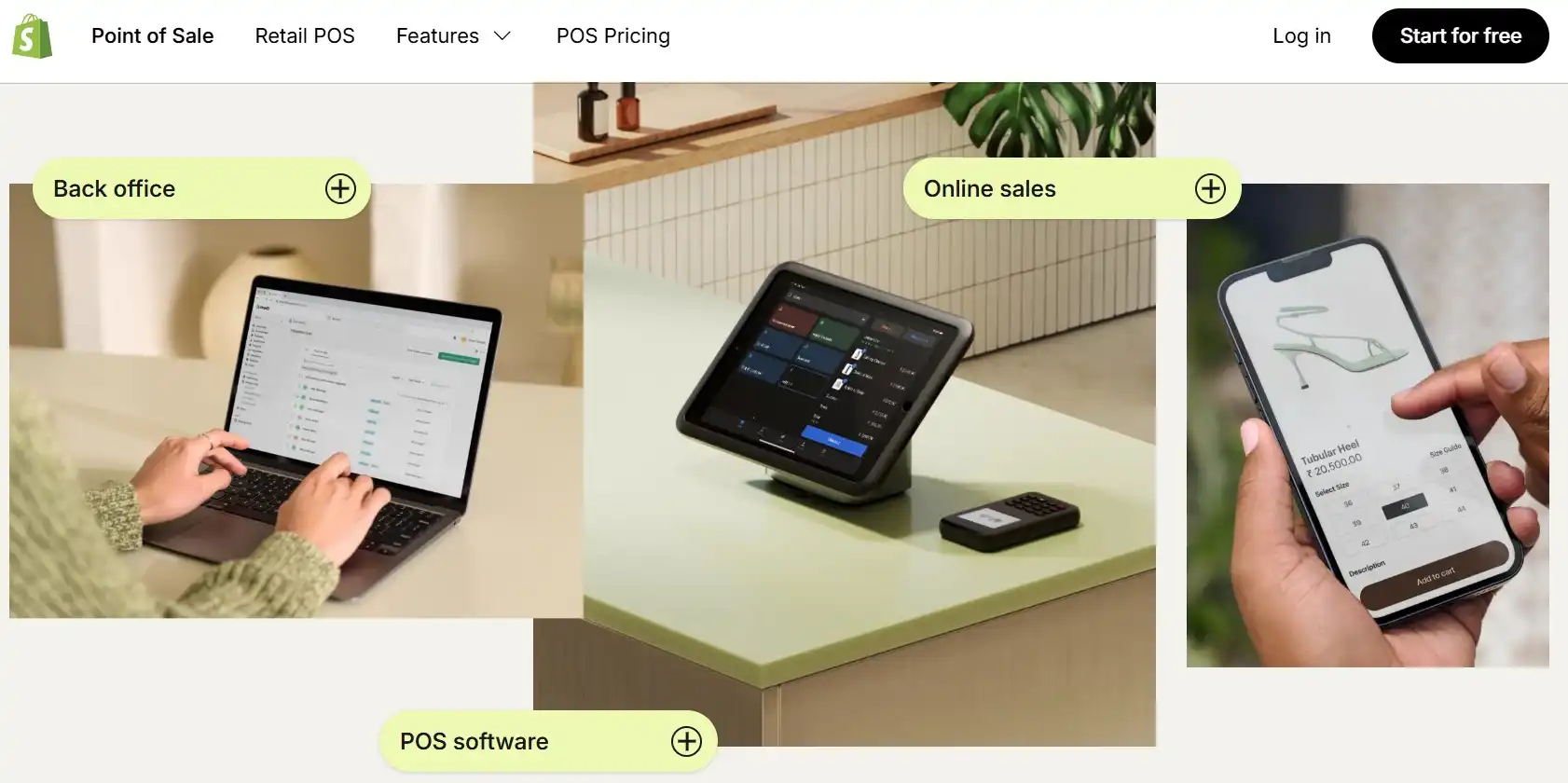
Okay, first things first: What is a POS? It’s basically a system (a combination of software and hardware tools) that lets sellers like you accept payments from customers in person.
When you buy something from a store, the clerk scans the item and you pay through a payment terminal (either with your card or through Apple Pay by scanning a QR code). This is an example of a POS system.
Shopify POS works by blending your online Shopify store with your in-store sales. Once you download the POS app and load it onto your iPad or mobile phone, you’re ready to start selling in person. The Shopify POS app will automatically sync your product inventory, payments, and customer profiles across your online store and your POS system.
Depending on your business needs, you can purchase additional hardware as well, such as barcode scanners, payment terminals, and receipt printers and integrate it into your POS system.
Who needs Shopify POS? Anybody who has an online Shopify store and also sells in person.
What features does Shopify POS have?
Shopify POS comes with the following features that make it easy for you to integrate your in-person sales with your online store. However, keep in mind that certain features are only available on pro POS plans.
Omnichannel selling
Customers can order items online and pick them up/ return them in-store, you can manage and ship orders directly within the POS system, and you can add QR codes to products to help customers learn more about the items and complete the purchase from their mobiles.
Advanced inventory management and tracking
Along with alerts on low stocks, and the ability to use a barcode scanner to match your store inventory with your POS records.
POS staff
Depending on the plan you choose, you can add your in-store staff to the POS system with a separate pin code for each person. You can even calculate sales commission based on the sales that each member helped with.
Easy checkout experience
You can customize the checkout grid and let your customers check out anywhere — even from their smartphones or through offline cash transactions. Taxes are automatically calculated and added at checkout. You can also cancel orders, process returns and refunds, take order notes, and save people’s carts.
The Shopify POS system also lets you enter custom discount codes or bundle items. You can use your device camera to scan product barcodes, and either print the receipts or send them to your buyer via SMS or email.
Product organization
Just like your online Shopify store, you can group your products into collections, add multiple variants, and even create barcode labels for each. If you sell in-person on multiple locations, you can assign inventory to each location.
Customer profiles
Shopify POS lets you save your customer’s data through profiles, under which you’ll be able to see their order history, contact info, lifetime spend, shipping address, and preferences for receiving marketing communication. This helps you create and manage customer loyalty programs easily, making sure your loyal buyers feel appreciated and rewarded.
Actionable insights
The POS system gives you detailed reports on sales, products, cash flow, inventory, and discounts. This gives you an overview of your in-store sales performance.
Payment methods
Shopify POS supports a variety of payment methods, including gift cards, partial payments, and splitting payments across different methods. If you don’t want a separate payment terminal, you can turn your smartphone into a mobile card reader and accept “tap to pay” payments.
💡 For improved security of your devices, you can use proxy servers such as Proxys.io to protect yourself from malicious attacks, especially when accepting payments.
Types of hardware needed for Shopify POS
While you can use Shopify POS with the devices you currently have (particularly smartphones and iPads), you do need to get the required hardware devices if you get a lot of foot traffic to your brick-and-mortar store. Having hardware will just make your selling experience more seamless.
Shopify has its own hardware store where you can buy branded POS hardware.
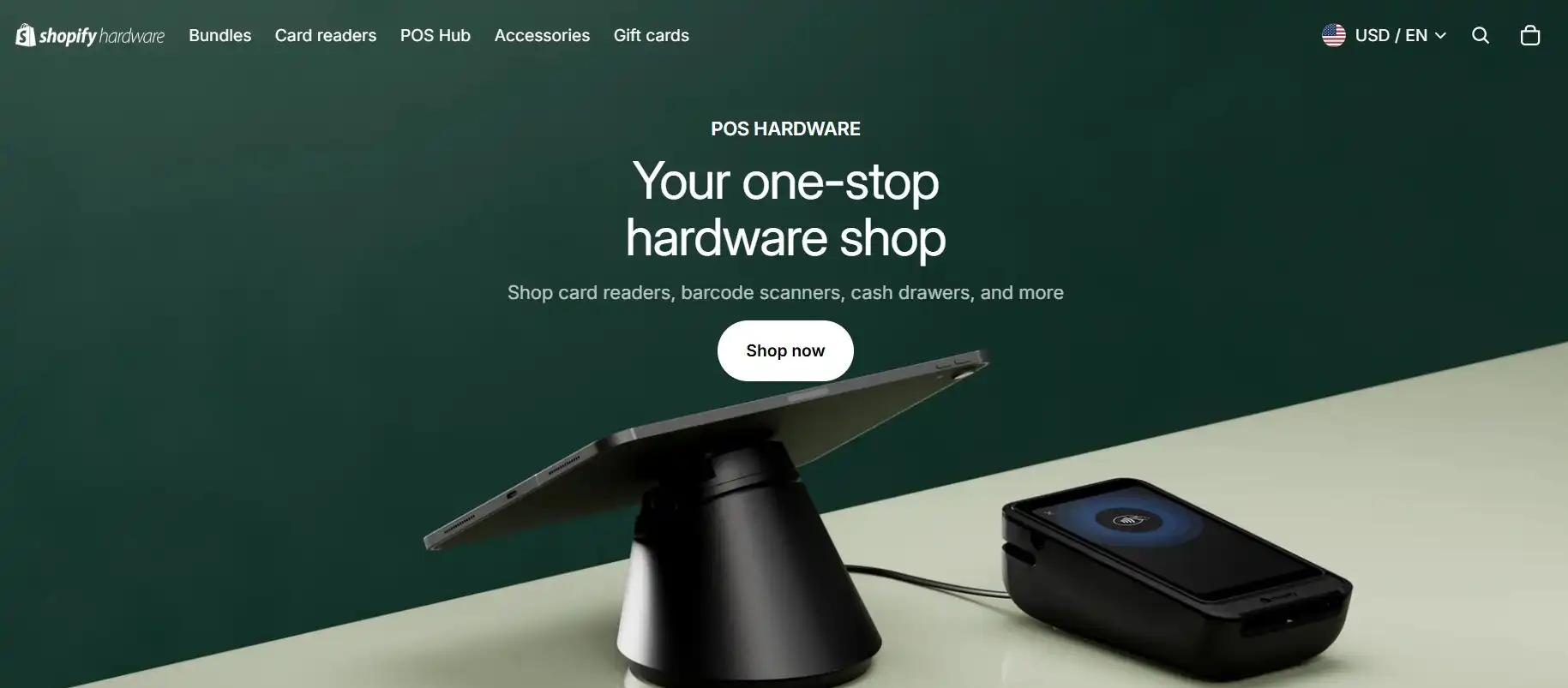
The types of POS hardware typically used include:
Tablet stands that stands to let your customers see and confirm purchases easily
Cash drawers that open automatically at checkout
Receipt printers
Label printers
Barcode scanners
Card readers
mPOP (mobile point of purchase) printers that combine receipt printers with cash drawers
A POS hub to connect all of your POS hardware. Shopify’s POS hub keeps your POS app and hardware in sync
It’s worth noting that the Shopify hardware store is only available in certain countries. So, if you live in a country that’s not supported, you’ll need to make sure you buy hardware that’s compatible with Shopify POS.
Which subscription plan should you get to access Shopify POS?
There are two ways in which you can access Shopify POS:
Shopify POS Lite: Comes with limited features, such as mobile checkout and basic analytics, and is available at no extra cost with all paid Shopify plans.
Shopify POS Pro: Comes with advanced features (including staff permissions), and is available as an add-on at $89/month/location. So, if you have two retail stores and use the POS Pro at both locations, you’ll have to pay $178 for the subscription.
Since the POS Pro is an add-on, you’ll still have to pay your normal Shopify subscription fees. Even if you cancel your POS Pro subscription at any point, your Shopify subscription plan will remain since the two are separate from each other.
📝 Note: If you have a Shopify Plus plan, up to 20 POS Pro locations are included in your plan.
Feature | Shopify POS Lite | Shopify POS Pro |
Mobile checkout | Yes | Yes |
Staff permissions and login | No | Yes; unlimited + includes sales attribution |
Omnichannel selling | Basic | Advanced, with features like in-store pickup |
Inventory management | Basic | Advanced, with features like demand forecasting |
Analytics | Basic | Advanced |
Bottom line: You should choose POS Lite if you just want a POS system for the occasional pop-up or two. But, if you have one or more permanent retail stores with multiple staff members, you should choose the POS Pro for a smoother experience for both you and your buyers.
How to get started with Shopify POS
1. First, download the Shopify POS app and login with your Shopify account. (If you don’t already have a Shopify account, you can sign up for one quickly.)
To upgrade to POS Pro, follow these steps from within your Shopify account’s dashboard.
Go to Sales channel → Point of sale. Select Locations → Manage subscriptions. Find the Review POS locations for each location section and select the Upgrade to POS Pro option. Then, click on Approve subscription and you’re done!
2. Sync your e-commerce inventory with the POS system.
3. Set up your POS app by customizing the grid, adding payment methods, choosing your region and language, and so on.
4. Order all the necessary hardware and integrate it into your POS system.
5. Train all your staff on how to use the POS system. You can set roles and permissions for each staff member and give them a 4-6 digit PIN to access the POS system.
That’s it! You’re now ready to start using your Shopify POS system to make sales and collect payments in person.
You can either use a barcode scanner to bring up the required product for checkout, or type keywords in the search bar to bring up the product manually.
Don’t forget to monitor your store performance by staying on top of all the reports and analytics available on your POS dashboard.
Maybe you finally bagged that store space you were dreaming about and are ready to expand your online business to an in-person brick-and-mortar store. Or, maybe you have some in-person pop-ups lined up and need an easier way of collecting payments from customers.
Either way, if you run an e-commerce store powered by Shopify, and are looking to sell in-person, too, then Shopify’s point of sale (POS) system is the natural (and easy) choice.
In this guide, we walk you through how Shopify POS works, how to set it up, and how much it will cost you.
What is Shopify POS? Who needs it?
Okay, first things first: What is a POS? It’s basically a system (a combination of software and hardware tools) that lets sellers like you accept payments from customers in person.
When you buy something from a store, the clerk scans the item and you pay through a payment terminal (either with your card or through Apple Pay by scanning a QR code). This is an example of a POS system.
Shopify POS works by blending your online Shopify store with your in-store sales. Once you download the POS app and load it onto your iPad or mobile phone, you’re ready to start selling in person. The Shopify POS app will automatically sync your product inventory, payments, and customer profiles across your online store and your POS system.
Depending on your business needs, you can purchase additional hardware as well, such as barcode scanners, payment terminals, and receipt printers and integrate it into your POS system.
Who needs Shopify POS? Anybody who has an online Shopify store and also sells in person.
What features does Shopify POS have?
Shopify POS comes with the following features that make it easy for you to integrate your in-person sales with your online store. However, keep in mind that certain features are only available on pro POS plans.
Omnichannel selling
Customers can order items online and pick them up/ return them in-store, you can manage and ship orders directly within the POS system, and you can add QR codes to products to help customers learn more about the items and complete the purchase from their mobiles.
Advanced inventory management and tracking
Along with alerts on low stocks, and the ability to use a barcode scanner to match your store inventory with your POS records.
POS staff
Depending on the plan you choose, you can add your in-store staff to the POS system with a separate pin code for each person. You can even calculate sales commission based on the sales that each member helped with.
Easy checkout experience
You can customize the checkout grid and let your customers check out anywhere — even from their smartphones or through offline cash transactions. Taxes are automatically calculated and added at checkout. You can also cancel orders, process returns and refunds, take order notes, and save people’s carts.
The Shopify POS system also lets you enter custom discount codes or bundle items. You can use your device camera to scan product barcodes, and either print the receipts or send them to your buyer via SMS or email.
Product organization
Just like your online Shopify store, you can group your products into collections, add multiple variants, and even create barcode labels for each. If you sell in-person on multiple locations, you can assign inventory to each location.
Customer profiles
Shopify POS lets you save your customer’s data through profiles, under which you’ll be able to see their order history, contact info, lifetime spend, shipping address, and preferences for receiving marketing communication. This helps you create and manage customer loyalty programs easily, making sure your loyal buyers feel appreciated and rewarded.
Actionable insights
The POS system gives you detailed reports on sales, products, cash flow, inventory, and discounts. This gives you an overview of your in-store sales performance.
Payment methods
Shopify POS supports a variety of payment methods, including gift cards, partial payments, and splitting payments across different methods. If you don’t want a separate payment terminal, you can turn your smartphone into a mobile card reader and accept “tap to pay” payments.
💡 For improved security of your devices, you can use proxy servers such as Proxys.io to protect yourself from malicious attacks, especially when accepting payments.
Types of hardware needed for Shopify POS
While you can use Shopify POS with the devices you currently have (particularly smartphones and iPads), you do need to get the required hardware devices if you get a lot of foot traffic to your brick-and-mortar store. Having hardware will just make your selling experience more seamless.
Shopify has its own hardware store where you can buy branded POS hardware.
The types of POS hardware typically used include:
Tablet stands that stands to let your customers see and confirm purchases easily
Cash drawers that open automatically at checkout
Receipt printers
Label printers
Barcode scanners
Card readers
mPOP (mobile point of purchase) printers that combine receipt printers with cash drawers
A POS hub to connect all of your POS hardware. Shopify’s POS hub keeps your POS app and hardware in sync
It’s worth noting that the Shopify hardware store is only available in certain countries. So, if you live in a country that’s not supported, you’ll need to make sure you buy hardware that’s compatible with Shopify POS.
Which subscription plan should you get to access Shopify POS?
There are two ways in which you can access Shopify POS:
Shopify POS Lite: Comes with limited features, such as mobile checkout and basic analytics, and is available at no extra cost with all paid Shopify plans.
Shopify POS Pro: Comes with advanced features (including staff permissions), and is available as an add-on at $89/month/location. So, if you have two retail stores and use the POS Pro at both locations, you’ll have to pay $178 for the subscription.
Since the POS Pro is an add-on, you’ll still have to pay your normal Shopify subscription fees. Even if you cancel your POS Pro subscription at any point, your Shopify subscription plan will remain since the two are separate from each other.
📝 Note: If you have a Shopify Plus plan, up to 20 POS Pro locations are included in your plan.
Feature | Shopify POS Lite | Shopify POS Pro |
Mobile checkout | Yes | Yes |
Staff permissions and login | No | Yes; unlimited + includes sales attribution |
Omnichannel selling | Basic | Advanced, with features like in-store pickup |
Inventory management | Basic | Advanced, with features like demand forecasting |
Analytics | Basic | Advanced |
Bottom line: You should choose POS Lite if you just want a POS system for the occasional pop-up or two. But, if you have one or more permanent retail stores with multiple staff members, you should choose the POS Pro for a smoother experience for both you and your buyers.
How to get started with Shopify POS
1. First, download the Shopify POS app and login with your Shopify account. (If you don’t already have a Shopify account, you can sign up for one quickly.)
To upgrade to POS Pro, follow these steps from within your Shopify account’s dashboard.
Go to Sales channel → Point of sale. Select Locations → Manage subscriptions. Find the Review POS locations for each location section and select the Upgrade to POS Pro option. Then, click on Approve subscription and you’re done!
2. Sync your e-commerce inventory with the POS system.
3. Set up your POS app by customizing the grid, adding payment methods, choosing your region and language, and so on.
4. Order all the necessary hardware and integrate it into your POS system.
5. Train all your staff on how to use the POS system. You can set roles and permissions for each staff member and give them a 4-6 digit PIN to access the POS system.
That’s it! You’re now ready to start using your Shopify POS system to make sales and collect payments in person.
You can either use a barcode scanner to bring up the required product for checkout, or type keywords in the search bar to bring up the product manually.
Don’t forget to monitor your store performance by staying on top of all the reports and analytics available on your POS dashboard.
Maybe you finally bagged that store space you were dreaming about and are ready to expand your online business to an in-person brick-and-mortar store. Or, maybe you have some in-person pop-ups lined up and need an easier way of collecting payments from customers.
Either way, if you run an e-commerce store powered by Shopify, and are looking to sell in-person, too, then Shopify’s point of sale (POS) system is the natural (and easy) choice.
In this guide, we walk you through how Shopify POS works, how to set it up, and how much it will cost you.
What is Shopify POS? Who needs it?
Okay, first things first: What is a POS? It’s basically a system (a combination of software and hardware tools) that lets sellers like you accept payments from customers in person.
When you buy something from a store, the clerk scans the item and you pay through a payment terminal (either with your card or through Apple Pay by scanning a QR code). This is an example of a POS system.
Shopify POS works by blending your online Shopify store with your in-store sales. Once you download the POS app and load it onto your iPad or mobile phone, you’re ready to start selling in person. The Shopify POS app will automatically sync your product inventory, payments, and customer profiles across your online store and your POS system.
Depending on your business needs, you can purchase additional hardware as well, such as barcode scanners, payment terminals, and receipt printers and integrate it into your POS system.
Who needs Shopify POS? Anybody who has an online Shopify store and also sells in person.
What features does Shopify POS have?
Shopify POS comes with the following features that make it easy for you to integrate your in-person sales with your online store. However, keep in mind that certain features are only available on pro POS plans.
Omnichannel selling
Customers can order items online and pick them up/ return them in-store, you can manage and ship orders directly within the POS system, and you can add QR codes to products to help customers learn more about the items and complete the purchase from their mobiles.
Advanced inventory management and tracking
Along with alerts on low stocks, and the ability to use a barcode scanner to match your store inventory with your POS records.
POS staff
Depending on the plan you choose, you can add your in-store staff to the POS system with a separate pin code for each person. You can even calculate sales commission based on the sales that each member helped with.
Easy checkout experience
You can customize the checkout grid and let your customers check out anywhere — even from their smartphones or through offline cash transactions. Taxes are automatically calculated and added at checkout. You can also cancel orders, process returns and refunds, take order notes, and save people’s carts.
The Shopify POS system also lets you enter custom discount codes or bundle items. You can use your device camera to scan product barcodes, and either print the receipts or send them to your buyer via SMS or email.
Product organization
Just like your online Shopify store, you can group your products into collections, add multiple variants, and even create barcode labels for each. If you sell in-person on multiple locations, you can assign inventory to each location.
Customer profiles
Shopify POS lets you save your customer’s data through profiles, under which you’ll be able to see their order history, contact info, lifetime spend, shipping address, and preferences for receiving marketing communication. This helps you create and manage customer loyalty programs easily, making sure your loyal buyers feel appreciated and rewarded.
Actionable insights
The POS system gives you detailed reports on sales, products, cash flow, inventory, and discounts. This gives you an overview of your in-store sales performance.
Payment methods
Shopify POS supports a variety of payment methods, including gift cards, partial payments, and splitting payments across different methods. If you don’t want a separate payment terminal, you can turn your smartphone into a mobile card reader and accept “tap to pay” payments.
💡 For improved security of your devices, you can use proxy servers such as Proxys.io to protect yourself from malicious attacks, especially when accepting payments.
Types of hardware needed for Shopify POS
While you can use Shopify POS with the devices you currently have (particularly smartphones and iPads), you do need to get the required hardware devices if you get a lot of foot traffic to your brick-and-mortar store. Having hardware will just make your selling experience more seamless.
Shopify has its own hardware store where you can buy branded POS hardware.
The types of POS hardware typically used include:
Tablet stands that stands to let your customers see and confirm purchases easily
Cash drawers that open automatically at checkout
Receipt printers
Label printers
Barcode scanners
Card readers
mPOP (mobile point of purchase) printers that combine receipt printers with cash drawers
A POS hub to connect all of your POS hardware. Shopify’s POS hub keeps your POS app and hardware in sync
It’s worth noting that the Shopify hardware store is only available in certain countries. So, if you live in a country that’s not supported, you’ll need to make sure you buy hardware that’s compatible with Shopify POS.
Which subscription plan should you get to access Shopify POS?
There are two ways in which you can access Shopify POS:
Shopify POS Lite: Comes with limited features, such as mobile checkout and basic analytics, and is available at no extra cost with all paid Shopify plans.
Shopify POS Pro: Comes with advanced features (including staff permissions), and is available as an add-on at $89/month/location. So, if you have two retail stores and use the POS Pro at both locations, you’ll have to pay $178 for the subscription.
Since the POS Pro is an add-on, you’ll still have to pay your normal Shopify subscription fees. Even if you cancel your POS Pro subscription at any point, your Shopify subscription plan will remain since the two are separate from each other.
📝 Note: If you have a Shopify Plus plan, up to 20 POS Pro locations are included in your plan.
Feature | Shopify POS Lite | Shopify POS Pro |
Mobile checkout | Yes | Yes |
Staff permissions and login | No | Yes; unlimited + includes sales attribution |
Omnichannel selling | Basic | Advanced, with features like in-store pickup |
Inventory management | Basic | Advanced, with features like demand forecasting |
Analytics | Basic | Advanced |
Bottom line: You should choose POS Lite if you just want a POS system for the occasional pop-up or two. But, if you have one or more permanent retail stores with multiple staff members, you should choose the POS Pro for a smoother experience for both you and your buyers.
How to get started with Shopify POS
1. First, download the Shopify POS app and login with your Shopify account. (If you don’t already have a Shopify account, you can sign up for one quickly.)
To upgrade to POS Pro, follow these steps from within your Shopify account’s dashboard.
Go to Sales channel → Point of sale. Select Locations → Manage subscriptions. Find the Review POS locations for each location section and select the Upgrade to POS Pro option. Then, click on Approve subscription and you’re done!
2. Sync your e-commerce inventory with the POS system.
3. Set up your POS app by customizing the grid, adding payment methods, choosing your region and language, and so on.
4. Order all the necessary hardware and integrate it into your POS system.
5. Train all your staff on how to use the POS system. You can set roles and permissions for each staff member and give them a 4-6 digit PIN to access the POS system.
That’s it! You’re now ready to start using your Shopify POS system to make sales and collect payments in person.
You can either use a barcode scanner to bring up the required product for checkout, or type keywords in the search bar to bring up the product manually.
Don’t forget to monitor your store performance by staying on top of all the reports and analytics available on your POS dashboard.
Maybe you finally bagged that store space you were dreaming about and are ready to expand your online business to an in-person brick-and-mortar store. Or, maybe you have some in-person pop-ups lined up and need an easier way of collecting payments from customers.
Either way, if you run an e-commerce store powered by Shopify, and are looking to sell in-person, too, then Shopify’s point of sale (POS) system is the natural (and easy) choice.
In this guide, we walk you through how Shopify POS works, how to set it up, and how much it will cost you.
What is Shopify POS? Who needs it?
Okay, first things first: What is a POS? It’s basically a system (a combination of software and hardware tools) that lets sellers like you accept payments from customers in person.
When you buy something from a store, the clerk scans the item and you pay through a payment terminal (either with your card or through Apple Pay by scanning a QR code). This is an example of a POS system.
Shopify POS works by blending your online Shopify store with your in-store sales. Once you download the POS app and load it onto your iPad or mobile phone, you’re ready to start selling in person. The Shopify POS app will automatically sync your product inventory, payments, and customer profiles across your online store and your POS system.
Depending on your business needs, you can purchase additional hardware as well, such as barcode scanners, payment terminals, and receipt printers and integrate it into your POS system.
Who needs Shopify POS? Anybody who has an online Shopify store and also sells in person.
What features does Shopify POS have?
Shopify POS comes with the following features that make it easy for you to integrate your in-person sales with your online store. However, keep in mind that certain features are only available on pro POS plans.
Omnichannel selling
Customers can order items online and pick them up/ return them in-store, you can manage and ship orders directly within the POS system, and you can add QR codes to products to help customers learn more about the items and complete the purchase from their mobiles.
Advanced inventory management and tracking
Along with alerts on low stocks, and the ability to use a barcode scanner to match your store inventory with your POS records.
POS staff
Depending on the plan you choose, you can add your in-store staff to the POS system with a separate pin code for each person. You can even calculate sales commission based on the sales that each member helped with.
Easy checkout experience
You can customize the checkout grid and let your customers check out anywhere — even from their smartphones or through offline cash transactions. Taxes are automatically calculated and added at checkout. You can also cancel orders, process returns and refunds, take order notes, and save people’s carts.
The Shopify POS system also lets you enter custom discount codes or bundle items. You can use your device camera to scan product barcodes, and either print the receipts or send them to your buyer via SMS or email.
Product organization
Just like your online Shopify store, you can group your products into collections, add multiple variants, and even create barcode labels for each. If you sell in-person on multiple locations, you can assign inventory to each location.
Customer profiles
Shopify POS lets you save your customer’s data through profiles, under which you’ll be able to see their order history, contact info, lifetime spend, shipping address, and preferences for receiving marketing communication. This helps you create and manage customer loyalty programs easily, making sure your loyal buyers feel appreciated and rewarded.
Actionable insights
The POS system gives you detailed reports on sales, products, cash flow, inventory, and discounts. This gives you an overview of your in-store sales performance.
Payment methods
Shopify POS supports a variety of payment methods, including gift cards, partial payments, and splitting payments across different methods. If you don’t want a separate payment terminal, you can turn your smartphone into a mobile card reader and accept “tap to pay” payments.
💡 For improved security of your devices, you can use proxy servers such as Proxys.io to protect yourself from malicious attacks, especially when accepting payments.
Types of hardware needed for Shopify POS
While you can use Shopify POS with the devices you currently have (particularly smartphones and iPads), you do need to get the required hardware devices if you get a lot of foot traffic to your brick-and-mortar store. Having hardware will just make your selling experience more seamless.
Shopify has its own hardware store where you can buy branded POS hardware.
The types of POS hardware typically used include:
Tablet stands that stands to let your customers see and confirm purchases easily
Cash drawers that open automatically at checkout
Receipt printers
Label printers
Barcode scanners
Card readers
mPOP (mobile point of purchase) printers that combine receipt printers with cash drawers
A POS hub to connect all of your POS hardware. Shopify’s POS hub keeps your POS app and hardware in sync
It’s worth noting that the Shopify hardware store is only available in certain countries. So, if you live in a country that’s not supported, you’ll need to make sure you buy hardware that’s compatible with Shopify POS.
Which subscription plan should you get to access Shopify POS?
There are two ways in which you can access Shopify POS:
Shopify POS Lite: Comes with limited features, such as mobile checkout and basic analytics, and is available at no extra cost with all paid Shopify plans.
Shopify POS Pro: Comes with advanced features (including staff permissions), and is available as an add-on at $89/month/location. So, if you have two retail stores and use the POS Pro at both locations, you’ll have to pay $178 for the subscription.
Since the POS Pro is an add-on, you’ll still have to pay your normal Shopify subscription fees. Even if you cancel your POS Pro subscription at any point, your Shopify subscription plan will remain since the two are separate from each other.
📝 Note: If you have a Shopify Plus plan, up to 20 POS Pro locations are included in your plan.
Feature | Shopify POS Lite | Shopify POS Pro |
Mobile checkout | Yes | Yes |
Staff permissions and login | No | Yes; unlimited + includes sales attribution |
Omnichannel selling | Basic | Advanced, with features like in-store pickup |
Inventory management | Basic | Advanced, with features like demand forecasting |
Analytics | Basic | Advanced |
Bottom line: You should choose POS Lite if you just want a POS system for the occasional pop-up or two. But, if you have one or more permanent retail stores with multiple staff members, you should choose the POS Pro for a smoother experience for both you and your buyers.
How to get started with Shopify POS
1. First, download the Shopify POS app and login with your Shopify account. (If you don’t already have a Shopify account, you can sign up for one quickly.)
To upgrade to POS Pro, follow these steps from within your Shopify account’s dashboard.
Go to Sales channel → Point of sale. Select Locations → Manage subscriptions. Find the Review POS locations for each location section and select the Upgrade to POS Pro option. Then, click on Approve subscription and you’re done!
2. Sync your e-commerce inventory with the POS system.
3. Set up your POS app by customizing the grid, adding payment methods, choosing your region and language, and so on.
4. Order all the necessary hardware and integrate it into your POS system.
5. Train all your staff on how to use the POS system. You can set roles and permissions for each staff member and give them a 4-6 digit PIN to access the POS system.
That’s it! You’re now ready to start using your Shopify POS system to make sales and collect payments in person.
You can either use a barcode scanner to bring up the required product for checkout, or type keywords in the search bar to bring up the product manually.
Don’t forget to monitor your store performance by staying on top of all the reports and analytics available on your POS dashboard.