

Picture this: you restored five couches, listed them on Facebook Marketplace, and three weeks later you haven't sold a single one.
Worse, they're not even getting views anymore. If you've been there, you're not alone. It happens to the best of us.
The good news? There's a free, quick fix that actually works: relisting.
By deleting a stale listing and posting it fresh, you reset it in the algorithm's eyes and push it back in front of buyers.
Let's look at what relisting is, why it works, and how to relist on Facebook Marketplace, whether manually or in bulk.
Key takeaways
Relisting means deleting a stale listing and posting it fresh, so the algorithm treats it as new and bumps it back to the top.
It's free, but timing matters: wait ~40–60 days before relisting, and don't relist the same item more than once every couple of months or you risk getting flagged.
Manual relisting is slow (~10 minutes a listing). A tool like Crosslist relists in bulk in minutes and auto-delists sold items so you don't double-sell.
What is Facebook Marketplace relisting?
Relisting on Facebook Marketplace refers to the process of deleting old, stagnant listings and replacing them with identical (or updated) listings for the same product(s).
You’re essentially creating new listings for existing, unsold products again to improve their visibility and make more sales.
To understand Facebook Marketplace relisting better, picture a physical grocery store. Your new inventory, i.e. your new listings, always go at the front of the shelves.
This is what potential buyers see first. In fact, most buyers never make it past these items displayed front-and-center.
But, the problem is that, as you keep adding new inventory, the items at the back of the shelves become invisible and remain unsold.
Even if someone does browse that far back, if they see the date mentioning that it was listed “20 weeks ago,” they’re going to assume it’s not available, or that it’s low quality.
But, these items are perfectly eligible to be sold, so you decide to display them at the front by relisting them.
This has the dual bonus of giving more visibility to the items while increasing their chances of getting sold.
You can either relist on Facebook Marketplace manually, or by using a Facebook Marketplace relisting tool like Crosslist, but more on that below.
Benefits of relisting on Facebook Marketplace
When you relist on Facebook Marketplace, you’re essentially dusting off your old, forgotten listings and putting them in front of potential buyers once again.
This increases your chances of selling them as the algorithm tends to favor fresh listings over ones that were listed 10 weeks ago.
📝 A relist counts as a fresh listing on Facebook Marketplace (and every other e-commerce platform, to be honest).
Here are the benefits of a relisting in detail:
SEO boost: On Facebook Marketplace, listing recency matters more than anything else. The platform wants more visitors, and visitors want new listings. So, Facebook Marketplace promotes any new listings, showing them first to users and among search results. This means that when you relist, your listings will get an SEO boost and feature at the top of search results.
Increased visibility: A fresh listing re-enters the feed and search results that active buyers are scrolling, and shows up for people browsing that category right now. Instead of sitting buried where nobody scrolls, your item gets back in front of the buyers most likely to purchase it.
Inventory refresh: Let’s be honest — even if someone finds an old listing of yours, they likely won’t purchase the item because an old listing equals a stale/ sold out product. This is why an inventory refresh through relisting is crucial to letting potential buyers know that the items are still available for sale.
More sales: The increased visibility that relisting gives you increases the chances of you making more sales.
When should you relist on Facebook Marketplace?
While you can do a Facebook Marketplace relist whenever you want, it’s better to wait till your listings become stale before relisting.
We generally recommend waiting at least 40-60 days after you post the original listing.
This gives sufficient time for your listings to accumulate statistics (such as likes, shares, etc.) and, hopefully, make a sale.
Timing matters, too. When you first post or relist an item, Facebook often gives it a short visibility boost during the first 24 to 48 hours.
During this period, the algorithm shows the listing to more local buyers. After that initial boost, visibility typically starts to decline.
To make the most of that window, relist when buyers are actually browsing.
Mid-morning to mid-afternoon on weekdays tends to see the most traffic, with midweek (around Wednesday) being especially active.
Relisting late at night, right before that quiet stretch, wastes most of the honeymoon period on an empty audience.
Other than that, it’s a good idea to relist on Facebook Marketplace if:
You want to make significant changes to your listing details. This could be because you made changes to the product itself and want your listings to be updated, or because you want your listings to reflect the latest market trends, such as price
Your listings have stopped getting any views, likes, or shares, meaning they’ve become invisible to any potential buyers
You have multiple variants of the same product listed, but a few of the variants haven’t had any sales at all
You haven’t made even a single sale on the listings in over a month
You sell holiday-themed or seasonal items, and that time of the year is right around the corner, increasing the demand for your products
The same logic applies across every channel you sell on, which we cover in our relist and delist guide.
How often should you relist on Facebook Marketplace?
Having a periodic Facebook Marketplace relisting strategy is essential to increase your sales.
However, relisting too often can have the opposite effect, even putting your account at risk.
If you relist the same listings very often, Facebook Marketplace might flag your account for suspicious activity, ending up in a restriction, suspension, or termination.
Relisting too often also has the negative consequence of the same listings showing up on top of your inventory.
This means that any user who checks out your profile will keep seeing the same items repeatedly, signaling that you either have no other items to sell, or are trying desperately to sell off some old stock.
The end result? Even interested buyers may turn away.
The bottom line is to wait at least 2 months before you relist the same listings again.
How to relist on Facebook Marketplace manually
This simple step-by-step process lets you know how to carry out a manual Facebook Marketplace relist.
Step 1: Log in to your Facebook Marketplace account and head over to the specific listing you want to relist.
Step 2: Copy all the listing details, such as the title, description, price, tags, categories, size, and so on, and paste it into a separate document.
Download the product photos as well, and delete the originally posted listing.
Step 3: Create a new listing and paste all the details you copied over. Make any edits or changes to the details, if you want.
Step 4: Post the listing.
Faster (but flawed) alternatives
1) When your listings turn 7 days old, sometimes, you may see a “renew” button. When you click on it, your listing gets a small bump.
However, you can only use this button a maximum of 5 times, and the benefits aren’t that great. Think of it as a lazy relist.
2) After around 2-5 weeks of no activity, Facebook Marketplace sometimes shows you a “delete and relist” button.
It does the job of copying your listing details, deleting the original listing, and creating a new one.
This can save time compared to manually relisting an item, but it has some drawbacks.
Users have reported that it removes all listing tags and converts individual listings into business-style listings marked as "in stock."
In some cases, there is no way to switch them back.This can be frustrating for local sellers who are only looking to sell a single piece.
So, the best way to truly boost your listings is to delete and relist it on your own.
Okay, we know what you’re thinking. Relisting a single listing manually is fine, but how do you relist in bulk? Won’t that take hours?
You’re right. Even if a single listing takes 10 minutes, you’re looking at spending a full hour just to relist 6 listings. It’s tedious and time-consuming.
This is where a tool like Crosslist comes in. It automates your relisting process, leaving you free to work on strategic business decisions.
Here’s how using a product relister for Facebook Marketplace compares to relisting manually.
Relisting on Facebook Marketplace manually | Using Crosslist |
Slow and tedious; consumes hours of your time | Quick and easy; only takes minutes |
Very energy-intensive | No energy required as it only takes the click of a few buttons |
Highly prone to errors | Error-free |
Bottom line: Using Crosslist to speed up your relisting strategy is the smarter and easier choice.
We’ll walk you through the whole process.
Autodelist: what happens when an item sells?
Relisting keeps your listings visible, but there's a separate problem worth solving before you scale up: what happens when an item actually sells.
If you’re selling the same item across multiple marketplaces, a sale on one platform does not automatically remove it from the others.
Until you manually delist the item everywhere else, it can still be purchased by another buyer, without you noticing.
If it happens, you've double-sold. You’re forced to cancel an order, issue a refund, and potentially deal with negative feedback or marketplace penalties.
The more platforms you sell on, the easier it becomes to lose track of inventory manually.
That's why Crosslist created the autodelist function, which can detect when an item sells on any connected marketplace and automatically remove the listing from every other platform.
Note: for some marketplaces, this requires your desktop app or browser extension to be running in the background.
These solve two different problems: relisting refreshes stale inventory to boost visibility, and autodelist protects sold inventory from double-selling. If you're selling on more than one marketplace, you need both.
How to relist on Facebook Marketplace in bulk (with Crosslist)
Use this simple 4-step framework to relist in bulk with Crosslist. The entire process takes no more than a few minutes.
Before we begin, though, you need to sign up for a Crosslist subscription (if you don’t have one already) since the relisting process will happen inside the tool.
All of our pricing plans are affordable, with extra discounts for quarterly and annual subscriptions.
We also offer a 3-day money-back guarantee if you relist 20 or fewer listings.
Step 1: Import your existing Facebook Marketplace inventory into Crosslist
Before you can relist on Facebook Marketplace with Crosslist, you need to bring in your existing inventory into Crosslist first.
If you’ve already been using Crosslist and have your Facebook Marketplace inventory imported here, you can skip this step and go right ahead to the next one.
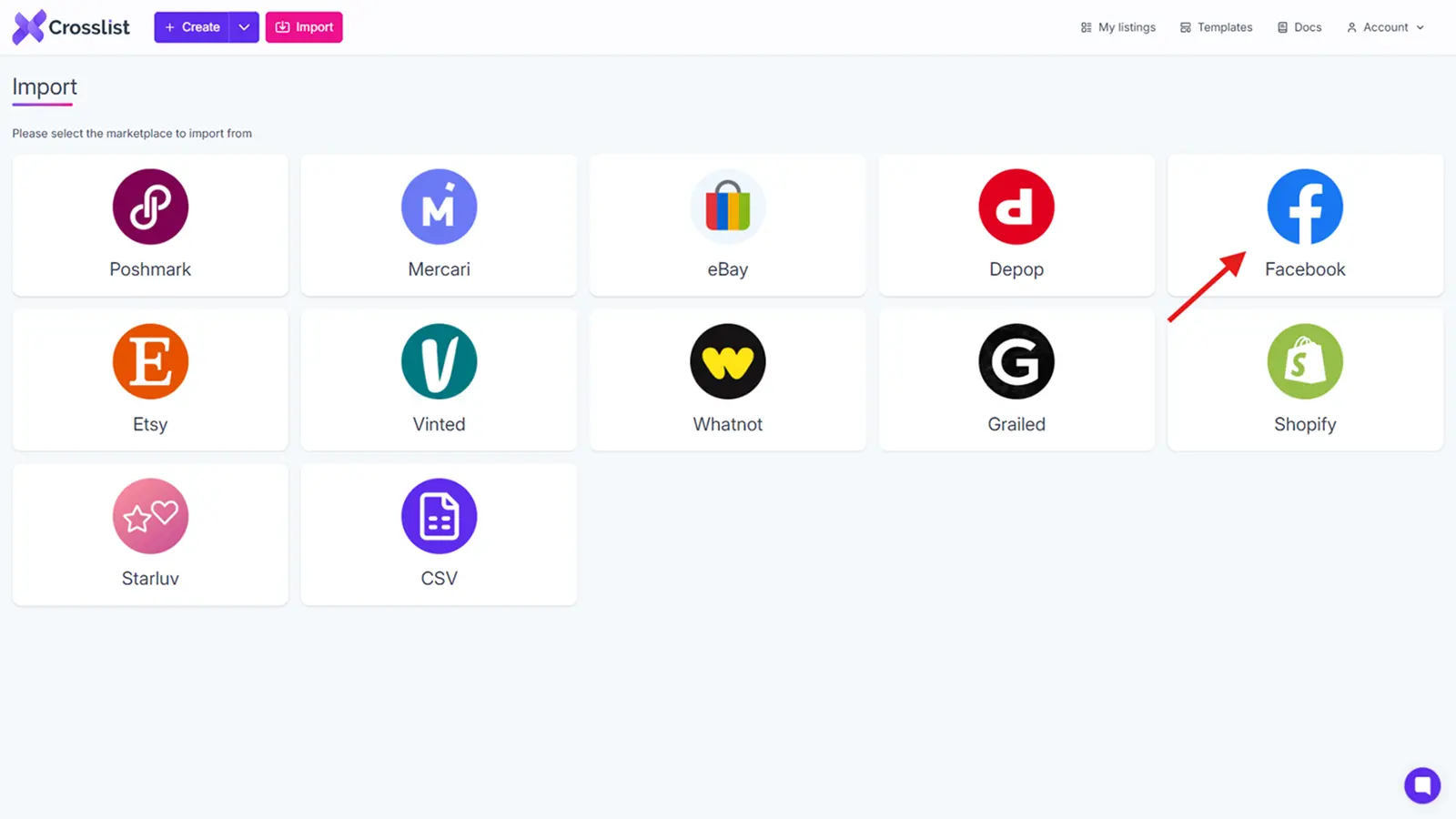
As for the rest of you… log in to Crosslist and head over to the dashboard. Find the Import button located at the top left corner of the screen, and click on it.

A pop-up with all the marketplaces supported by Crosslist will appear on the screen. Select Facebook Marketplace from this list since that’s where you’re going to import from.
A yellow sync will be shown on the screen to indicate that your existing inventory is being synced and prepared to be imported.
Give this process a few minutes, especially if you have a voluminous inventory.
Once done, you can start importing your inventory. You can do this one of two ways:
1. Importing your entire Facebook Marketplace inventory in one go, regardless of how many active listings you have
This option is ideal for sellers who plan on relisting all of their current Facebook Marketplace listings; either now or in the future.
This saves you the hassle of having to repeat this step all over again when you want to relist your next batch of listings.
So, save the future you some trouble, and import everything at once. Whether you have 35 listings or 350, Crosslist will bring them in simultaneously within minutes.
Having your inventory stored here also makes it easier if (and when) you decide to cross post to other platforms.
2. Importing your listings in batches (with a maximum of 100 listings allowed per batch)
Let’s say you’re waiting to get some products delivered (which might take weeks or months) before you relist them. Or, maybe, you’re planning to stop selling a few products.
Or, you could also have made significant changes to certain product designs that creating a fresh listing would be easier than editing an old one and relisting it.
In these cases, importing your listings in batches might be a better option. Use Crosslist’s advanced search bar to find and select the required listings.
To stop yourself from accidentally importing the same listings twice, toggle the Only show listings not yet imported button.
Once your selections are made, click the Import button to give the signal to Crosslist to begin bringing in your inventory.
Step 2: Navigate to the listing overview
Your inventory has now safely been brought into Crosslist. If you head over to the listing overview (which is just your dashboard), you’ll see a list of all of your listings at a glance.
Here’s the information you’ll see about each one of your listings:
Listing title
Preview of the product image
SKU number (if available)
Original date on which the listing was created
Place where the listing was created (if you imported from Facebook Marketplace, that will be the origin.
All the marketplaces it has been listed on
Any labels you’ve added to the listings for easy filtering
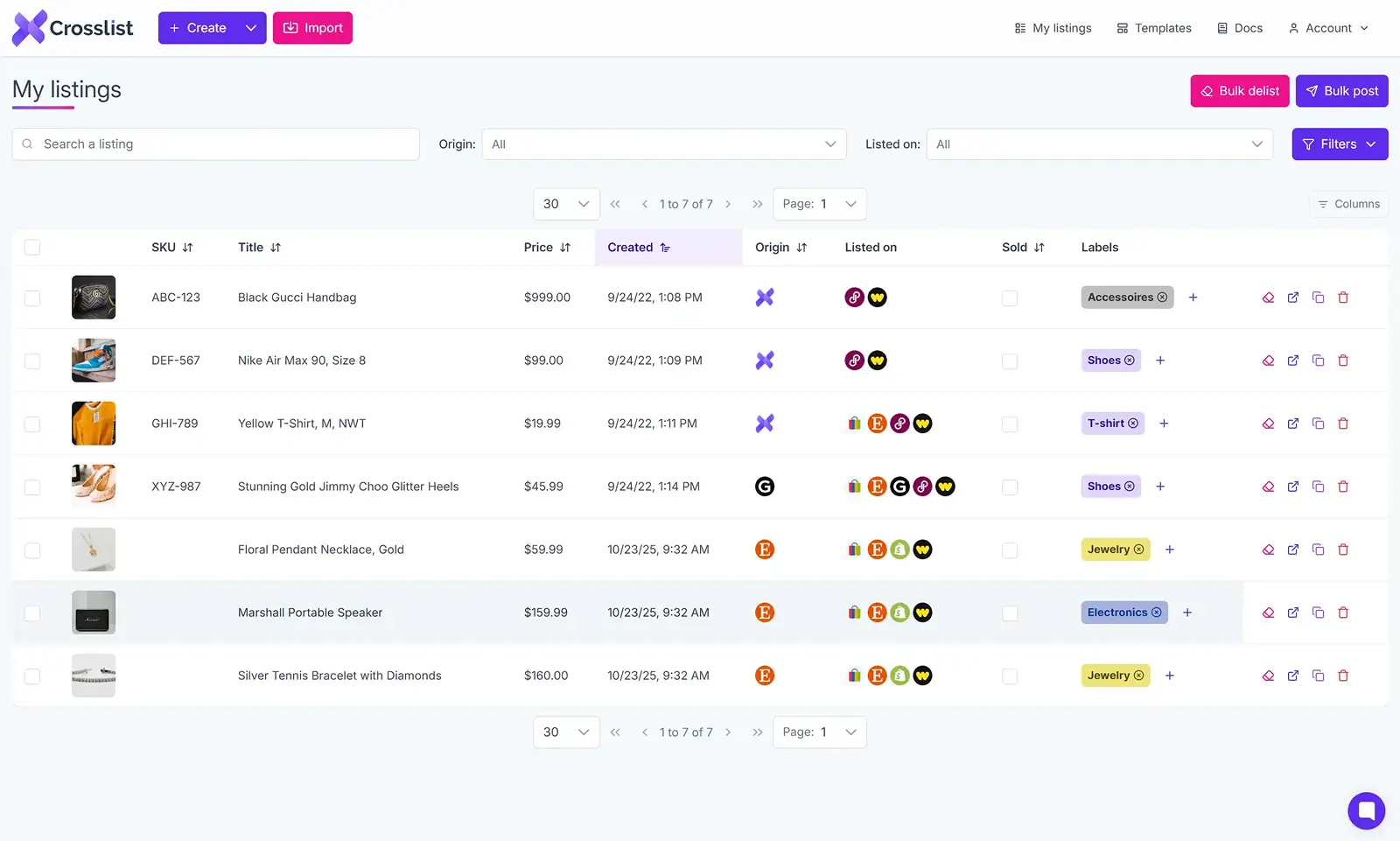
Since you’re only going to relist your Facebook Marketplace, having only those listings show up here will make it easier for you.
If you just signed up to Crosslist and imported your inventory, you’re already good to go.
If you were an existing Crosslist user, tweak the Origin tab to only show those listings that originated from Facebook Marketplace.
Alternatively, you can also use the Listed on tab to only show the listings that are currently live on Facebook Marketplace.
💡 Instead of just relisting your listings as they are, polishing or updating them with new information that reflects current market trends better will help you boost their visibility even further.
You can change the prices of your listings, add more information to the description, include better tags, or use new product photos.
Instead of editing each listing manually, Crosslist lets you bulk edit to save time. Here’s how:
a) To mark the prices of your listings up or down, use Crosslist’s price markup feature. Go to Account Settings → Price markup, and enter a number or percentage in the box next to Facebook Marketplace.
If you enter a number, say $10, all of your listings’ prices will increase by $10, i.e. they’ll go from $50 to $60.
If you enter a percentage, say 10%, all of your listings’ prices will increase by 10%, i.e. they’ll go from $50 to $55. To mark down your prices, enter a negative number or negative percentage.
b) To make the same kinds of edits to a large number of listings, add it to a template and apply the template to all the required listings. Here’s an in-depth guide on editing listings in bulk using templates.
Step 3: Select the listings you want to relist on Facebook Marketplace
From the listing overview, select all the listings you want to relist now. Use your tags to filter and search for specific listings more accurately.
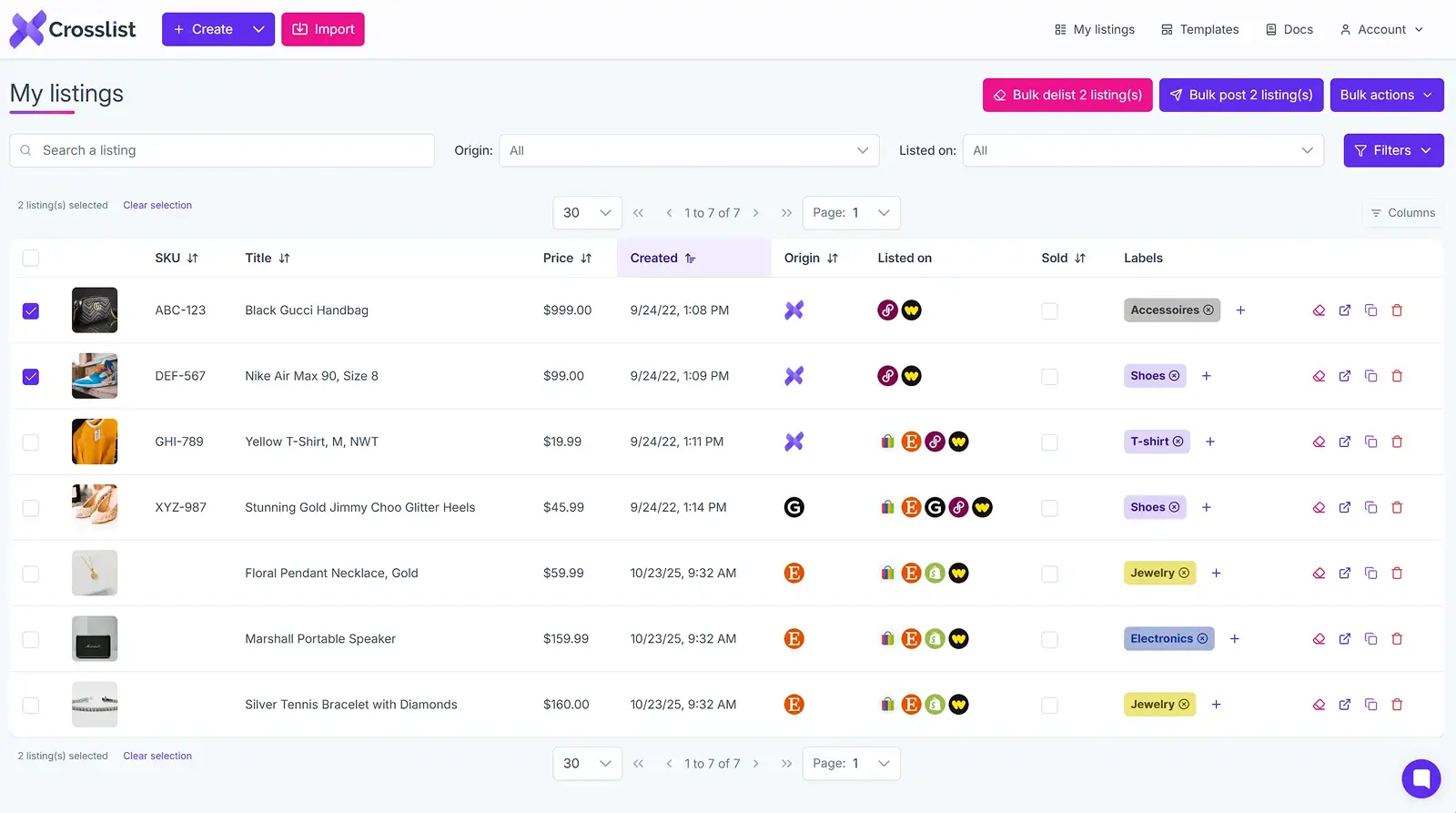
If you want to relist your full inventory, simply select all by checking the box at the very top of the first listing. No matter the size of your inventory, Crosslist will relist it all in bulk for you. Within minutes.
Relisting on Facebook Marketplace is, technically, a two-step process: first, you need to delete (or delist) the existing listing before replacing it with the new one.
However, Crosslist automatically takes care of the delisting process for you, so there are no extra steps for you.
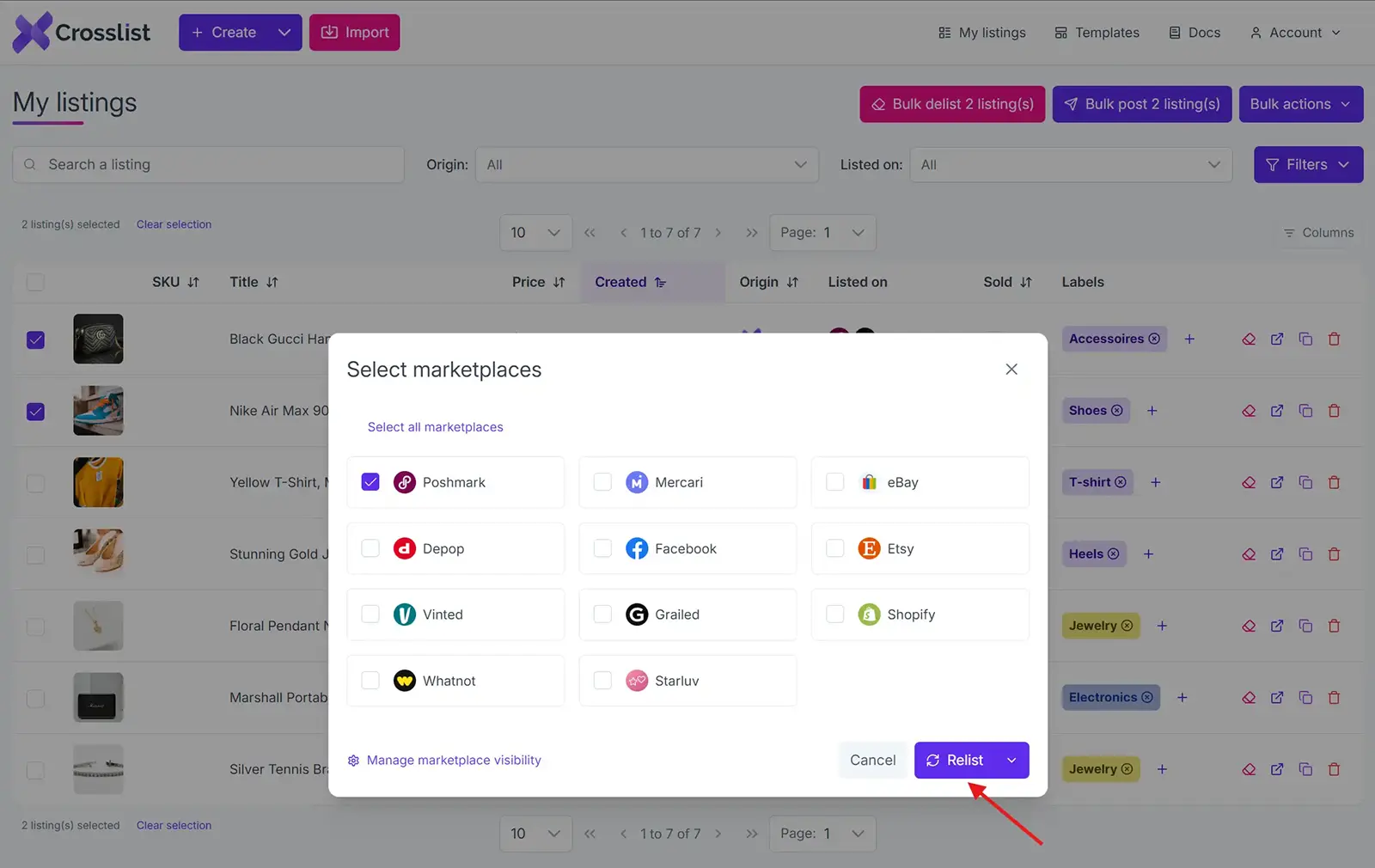
Once you’ve selected your listings, click on the Bulk post (x) listings button at the top right corner of the screen. Select Facebook Marketplace from the list again.
Step 4: Click on the “Relist” button
For the very last step, click the Relist button, and you’re all set! Crosslist will automatically delete your existing listings and post the new ones.
No more manual intervention needed from your side.
You also don’t have to worry about your account getting flagged for suspicious bot-like activity for crossing the rate limits threshold.
Crosslist uses a queuing system to distribute the listings in periodic intervals.
Relisting a single listing on Facebook Marketplace
While the above method is great for both relisting in bulk and separately, here’s an easier way of relisting a single listing.
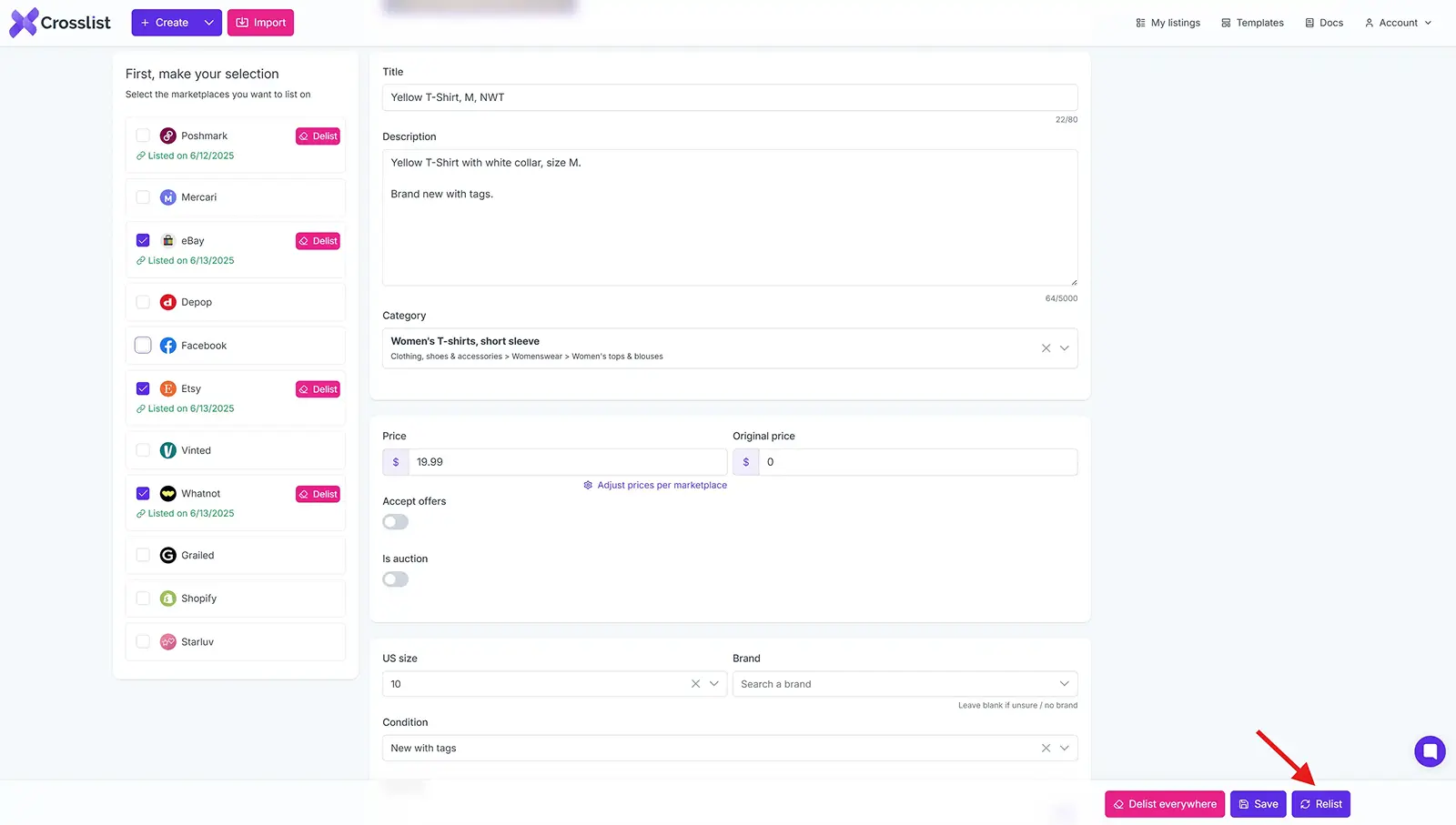
Step 1: Head to the listing overview and select the specific listing you want to relist.
Step 2: Click on the listing. This will open up the listing details page. Check all the details and make any necessary edits.
Step 3: On the left corner of the screen, you’ll see a list of all the marketplaces supported by Crosslist. Select Facebook Marketplace.
Step 4: Click on the Relist button at the bottom. That’s it!
Facebook Marketplace relisting tool: why Crosslist?
Crosslist is more than a Facebook Marketplace relisting tool.
It handles the repetitive work of relisting in bulk so you can focus on sourcing and selling, and it does a lot more once you're set up.
Fill out one dynamic form and post to every major marketplace at once. No separate form per platform, the way most cross listing apps still make you do it.
Relist, edit, and manage your inventory straight from your phone with the mobile app. Source items in the morning, relist them on the bus, check your sales over coffee.
When an item sells on any connected marketplace, Crosslist detects the sale and removes the listing everywhere else with autodelist.
Not sure how to rewrite your listings? Crosslist helps you generates complete listings with AI, including rewritten titles, descriptions, condition, and competitive pricing.
The AI photo editor cleans up images and removes backgrounds in bulk, with unlimited removals on every plan.
And because Crosslist supports the US, UK, Canada, and Australia, you can expand into regional marketplace variants most competitors can't reliably handle.
Here's what sellers say:
“This is a game changer. Keeps all inventory in one place, easy to delist and relist. Not just for huge resellers, it has saved me so much time and increased my sales. It pays for itself many times over.”
— Lorraine F., Trustpilot
Relisting is just one way to keep your Facebook Marketplace sales moving. Try Crosslist risk-free with our 3-day money-back guarantee.
Picture this: you restored five couches, listed them on Facebook Marketplace, and three weeks later you haven't sold a single one.
Worse, they're not even getting views anymore. If you've been there, you're not alone. It happens to the best of us.
The good news? There's a free, quick fix that actually works: relisting.
By deleting a stale listing and posting it fresh, you reset it in the algorithm's eyes and push it back in front of buyers.
Let's look at what relisting is, why it works, and how to relist on Facebook Marketplace, whether manually or in bulk.
Key takeaways
Relisting means deleting a stale listing and posting it fresh, so the algorithm treats it as new and bumps it back to the top.
It's free, but timing matters: wait ~40–60 days before relisting, and don't relist the same item more than once every couple of months or you risk getting flagged.
Manual relisting is slow (~10 minutes a listing). A tool like Crosslist relists in bulk in minutes and auto-delists sold items so you don't double-sell.
What is Facebook Marketplace relisting?
Relisting on Facebook Marketplace refers to the process of deleting old, stagnant listings and replacing them with identical (or updated) listings for the same product(s).
You’re essentially creating new listings for existing, unsold products again to improve their visibility and make more sales.
To understand Facebook Marketplace relisting better, picture a physical grocery store. Your new inventory, i.e. your new listings, always go at the front of the shelves.
This is what potential buyers see first. In fact, most buyers never make it past these items displayed front-and-center.
But, the problem is that, as you keep adding new inventory, the items at the back of the shelves become invisible and remain unsold.
Even if someone does browse that far back, if they see the date mentioning that it was listed “20 weeks ago,” they’re going to assume it’s not available, or that it’s low quality.
But, these items are perfectly eligible to be sold, so you decide to display them at the front by relisting them.
This has the dual bonus of giving more visibility to the items while increasing their chances of getting sold.
You can either relist on Facebook Marketplace manually, or by using a Facebook Marketplace relisting tool like Crosslist, but more on that below.
Benefits of relisting on Facebook Marketplace
When you relist on Facebook Marketplace, you’re essentially dusting off your old, forgotten listings and putting them in front of potential buyers once again.
This increases your chances of selling them as the algorithm tends to favor fresh listings over ones that were listed 10 weeks ago.
📝 A relist counts as a fresh listing on Facebook Marketplace (and every other e-commerce platform, to be honest).
Here are the benefits of a relisting in detail:
SEO boost: On Facebook Marketplace, listing recency matters more than anything else. The platform wants more visitors, and visitors want new listings. So, Facebook Marketplace promotes any new listings, showing them first to users and among search results. This means that when you relist, your listings will get an SEO boost and feature at the top of search results.
Increased visibility: A fresh listing re-enters the feed and search results that active buyers are scrolling, and shows up for people browsing that category right now. Instead of sitting buried where nobody scrolls, your item gets back in front of the buyers most likely to purchase it.
Inventory refresh: Let’s be honest — even if someone finds an old listing of yours, they likely won’t purchase the item because an old listing equals a stale/ sold out product. This is why an inventory refresh through relisting is crucial to letting potential buyers know that the items are still available for sale.
More sales: The increased visibility that relisting gives you increases the chances of you making more sales.
When should you relist on Facebook Marketplace?
While you can do a Facebook Marketplace relist whenever you want, it’s better to wait till your listings become stale before relisting.
We generally recommend waiting at least 40-60 days after you post the original listing.
This gives sufficient time for your listings to accumulate statistics (such as likes, shares, etc.) and, hopefully, make a sale.
Timing matters, too. When you first post or relist an item, Facebook often gives it a short visibility boost during the first 24 to 48 hours.
During this period, the algorithm shows the listing to more local buyers. After that initial boost, visibility typically starts to decline.
To make the most of that window, relist when buyers are actually browsing.
Mid-morning to mid-afternoon on weekdays tends to see the most traffic, with midweek (around Wednesday) being especially active.
Relisting late at night, right before that quiet stretch, wastes most of the honeymoon period on an empty audience.
Other than that, it’s a good idea to relist on Facebook Marketplace if:
You want to make significant changes to your listing details. This could be because you made changes to the product itself and want your listings to be updated, or because you want your listings to reflect the latest market trends, such as price
Your listings have stopped getting any views, likes, or shares, meaning they’ve become invisible to any potential buyers
You have multiple variants of the same product listed, but a few of the variants haven’t had any sales at all
You haven’t made even a single sale on the listings in over a month
You sell holiday-themed or seasonal items, and that time of the year is right around the corner, increasing the demand for your products
The same logic applies across every channel you sell on, which we cover in our relist and delist guide.
How often should you relist on Facebook Marketplace?
Having a periodic Facebook Marketplace relisting strategy is essential to increase your sales.
However, relisting too often can have the opposite effect, even putting your account at risk.
If you relist the same listings very often, Facebook Marketplace might flag your account for suspicious activity, ending up in a restriction, suspension, or termination.
Relisting too often also has the negative consequence of the same listings showing up on top of your inventory.
This means that any user who checks out your profile will keep seeing the same items repeatedly, signaling that you either have no other items to sell, or are trying desperately to sell off some old stock.
The end result? Even interested buyers may turn away.
The bottom line is to wait at least 2 months before you relist the same listings again.
How to relist on Facebook Marketplace manually
This simple step-by-step process lets you know how to carry out a manual Facebook Marketplace relist.
Step 1: Log in to your Facebook Marketplace account and head over to the specific listing you want to relist.
Step 2: Copy all the listing details, such as the title, description, price, tags, categories, size, and so on, and paste it into a separate document.
Download the product photos as well, and delete the originally posted listing.
Step 3: Create a new listing and paste all the details you copied over. Make any edits or changes to the details, if you want.
Step 4: Post the listing.
Faster (but flawed) alternatives
1) When your listings turn 7 days old, sometimes, you may see a “renew” button. When you click on it, your listing gets a small bump.
However, you can only use this button a maximum of 5 times, and the benefits aren’t that great. Think of it as a lazy relist.
2) After around 2-5 weeks of no activity, Facebook Marketplace sometimes shows you a “delete and relist” button.
It does the job of copying your listing details, deleting the original listing, and creating a new one.
This can save time compared to manually relisting an item, but it has some drawbacks.
Users have reported that it removes all listing tags and converts individual listings into business-style listings marked as "in stock."
In some cases, there is no way to switch them back.This can be frustrating for local sellers who are only looking to sell a single piece.
So, the best way to truly boost your listings is to delete and relist it on your own.
Okay, we know what you’re thinking. Relisting a single listing manually is fine, but how do you relist in bulk? Won’t that take hours?
You’re right. Even if a single listing takes 10 minutes, you’re looking at spending a full hour just to relist 6 listings. It’s tedious and time-consuming.
This is where a tool like Crosslist comes in. It automates your relisting process, leaving you free to work on strategic business decisions.
Here’s how using a product relister for Facebook Marketplace compares to relisting manually.
Relisting on Facebook Marketplace manually | Using Crosslist |
Slow and tedious; consumes hours of your time | Quick and easy; only takes minutes |
Very energy-intensive | No energy required as it only takes the click of a few buttons |
Highly prone to errors | Error-free |
Bottom line: Using Crosslist to speed up your relisting strategy is the smarter and easier choice.
We’ll walk you through the whole process.
Autodelist: what happens when an item sells?
Relisting keeps your listings visible, but there's a separate problem worth solving before you scale up: what happens when an item actually sells.
If you’re selling the same item across multiple marketplaces, a sale on one platform does not automatically remove it from the others.
Until you manually delist the item everywhere else, it can still be purchased by another buyer, without you noticing.
If it happens, you've double-sold. You’re forced to cancel an order, issue a refund, and potentially deal with negative feedback or marketplace penalties.
The more platforms you sell on, the easier it becomes to lose track of inventory manually.
That's why Crosslist created the autodelist function, which can detect when an item sells on any connected marketplace and automatically remove the listing from every other platform.
Note: for some marketplaces, this requires your desktop app or browser extension to be running in the background.
These solve two different problems: relisting refreshes stale inventory to boost visibility, and autodelist protects sold inventory from double-selling. If you're selling on more than one marketplace, you need both.
How to relist on Facebook Marketplace in bulk (with Crosslist)
Use this simple 4-step framework to relist in bulk with Crosslist. The entire process takes no more than a few minutes.
Before we begin, though, you need to sign up for a Crosslist subscription (if you don’t have one already) since the relisting process will happen inside the tool.
All of our pricing plans are affordable, with extra discounts for quarterly and annual subscriptions.
We also offer a 3-day money-back guarantee if you relist 20 or fewer listings.
Step 1: Import your existing Facebook Marketplace inventory into Crosslist
Before you can relist on Facebook Marketplace with Crosslist, you need to bring in your existing inventory into Crosslist first.
If you’ve already been using Crosslist and have your Facebook Marketplace inventory imported here, you can skip this step and go right ahead to the next one.
As for the rest of you… log in to Crosslist and head over to the dashboard. Find the Import button located at the top left corner of the screen, and click on it.
A pop-up with all the marketplaces supported by Crosslist will appear on the screen. Select Facebook Marketplace from this list since that’s where you’re going to import from.
A yellow sync will be shown on the screen to indicate that your existing inventory is being synced and prepared to be imported.
Give this process a few minutes, especially if you have a voluminous inventory.
Once done, you can start importing your inventory. You can do this one of two ways:
1. Importing your entire Facebook Marketplace inventory in one go, regardless of how many active listings you have
This option is ideal for sellers who plan on relisting all of their current Facebook Marketplace listings; either now or in the future.
This saves you the hassle of having to repeat this step all over again when you want to relist your next batch of listings.
So, save the future you some trouble, and import everything at once. Whether you have 35 listings or 350, Crosslist will bring them in simultaneously within minutes.
Having your inventory stored here also makes it easier if (and when) you decide to cross post to other platforms.
2. Importing your listings in batches (with a maximum of 100 listings allowed per batch)
Let’s say you’re waiting to get some products delivered (which might take weeks or months) before you relist them. Or, maybe, you’re planning to stop selling a few products.
Or, you could also have made significant changes to certain product designs that creating a fresh listing would be easier than editing an old one and relisting it.
In these cases, importing your listings in batches might be a better option. Use Crosslist’s advanced search bar to find and select the required listings.
To stop yourself from accidentally importing the same listings twice, toggle the Only show listings not yet imported button.
Once your selections are made, click the Import button to give the signal to Crosslist to begin bringing in your inventory.
Step 2: Navigate to the listing overview
Your inventory has now safely been brought into Crosslist. If you head over to the listing overview (which is just your dashboard), you’ll see a list of all of your listings at a glance.
Here’s the information you’ll see about each one of your listings:
Listing title
Preview of the product image
SKU number (if available)
Original date on which the listing was created
Place where the listing was created (if you imported from Facebook Marketplace, that will be the origin.
All the marketplaces it has been listed on
Any labels you’ve added to the listings for easy filtering
Since you’re only going to relist your Facebook Marketplace, having only those listings show up here will make it easier for you.
If you just signed up to Crosslist and imported your inventory, you’re already good to go.
If you were an existing Crosslist user, tweak the Origin tab to only show those listings that originated from Facebook Marketplace.
Alternatively, you can also use the Listed on tab to only show the listings that are currently live on Facebook Marketplace.
💡 Instead of just relisting your listings as they are, polishing or updating them with new information that reflects current market trends better will help you boost their visibility even further.
You can change the prices of your listings, add more information to the description, include better tags, or use new product photos.
Instead of editing each listing manually, Crosslist lets you bulk edit to save time. Here’s how:
a) To mark the prices of your listings up or down, use Crosslist’s price markup feature. Go to Account Settings → Price markup, and enter a number or percentage in the box next to Facebook Marketplace.
If you enter a number, say $10, all of your listings’ prices will increase by $10, i.e. they’ll go from $50 to $60.
If you enter a percentage, say 10%, all of your listings’ prices will increase by 10%, i.e. they’ll go from $50 to $55. To mark down your prices, enter a negative number or negative percentage.
b) To make the same kinds of edits to a large number of listings, add it to a template and apply the template to all the required listings. Here’s an in-depth guide on editing listings in bulk using templates.
Step 3: Select the listings you want to relist on Facebook Marketplace
From the listing overview, select all the listings you want to relist now. Use your tags to filter and search for specific listings more accurately.
If you want to relist your full inventory, simply select all by checking the box at the very top of the first listing. No matter the size of your inventory, Crosslist will relist it all in bulk for you. Within minutes.
Relisting on Facebook Marketplace is, technically, a two-step process: first, you need to delete (or delist) the existing listing before replacing it with the new one.
However, Crosslist automatically takes care of the delisting process for you, so there are no extra steps for you.
Once you’ve selected your listings, click on the Bulk post (x) listings button at the top right corner of the screen. Select Facebook Marketplace from the list again.
Step 4: Click on the “Relist” button
For the very last step, click the Relist button, and you’re all set! Crosslist will automatically delete your existing listings and post the new ones.
No more manual intervention needed from your side.
You also don’t have to worry about your account getting flagged for suspicious bot-like activity for crossing the rate limits threshold.
Crosslist uses a queuing system to distribute the listings in periodic intervals.
Relisting a single listing on Facebook Marketplace
While the above method is great for both relisting in bulk and separately, here’s an easier way of relisting a single listing.
Step 1: Head to the listing overview and select the specific listing you want to relist.
Step 2: Click on the listing. This will open up the listing details page. Check all the details and make any necessary edits.
Step 3: On the left corner of the screen, you’ll see a list of all the marketplaces supported by Crosslist. Select Facebook Marketplace.
Step 4: Click on the Relist button at the bottom. That’s it!
Facebook Marketplace relisting tool: why Crosslist?
Crosslist is more than a Facebook Marketplace relisting tool.
It handles the repetitive work of relisting in bulk so you can focus on sourcing and selling, and it does a lot more once you're set up.
Fill out one dynamic form and post to every major marketplace at once. No separate form per platform, the way most cross listing apps still make you do it.
Relist, edit, and manage your inventory straight from your phone with the mobile app. Source items in the morning, relist them on the bus, check your sales over coffee.
When an item sells on any connected marketplace, Crosslist detects the sale and removes the listing everywhere else with autodelist.
Not sure how to rewrite your listings? Crosslist helps you generates complete listings with AI, including rewritten titles, descriptions, condition, and competitive pricing.
The AI photo editor cleans up images and removes backgrounds in bulk, with unlimited removals on every plan.
And because Crosslist supports the US, UK, Canada, and Australia, you can expand into regional marketplace variants most competitors can't reliably handle.
Here's what sellers say:
“This is a game changer. Keeps all inventory in one place, easy to delist and relist. Not just for huge resellers, it has saved me so much time and increased my sales. It pays for itself many times over.”
— Lorraine F., Trustpilot
Relisting is just one way to keep your Facebook Marketplace sales moving. Try Crosslist risk-free with our 3-day money-back guarantee.
Picture this: you restored five couches, listed them on Facebook Marketplace, and three weeks later you haven't sold a single one.
Worse, they're not even getting views anymore. If you've been there, you're not alone. It happens to the best of us.
The good news? There's a free, quick fix that actually works: relisting.
By deleting a stale listing and posting it fresh, you reset it in the algorithm's eyes and push it back in front of buyers.
Let's look at what relisting is, why it works, and how to relist on Facebook Marketplace, whether manually or in bulk.
Key takeaways
Relisting means deleting a stale listing and posting it fresh, so the algorithm treats it as new and bumps it back to the top.
It's free, but timing matters: wait ~40–60 days before relisting, and don't relist the same item more than once every couple of months or you risk getting flagged.
Manual relisting is slow (~10 minutes a listing). A tool like Crosslist relists in bulk in minutes and auto-delists sold items so you don't double-sell.
What is Facebook Marketplace relisting?
Relisting on Facebook Marketplace refers to the process of deleting old, stagnant listings and replacing them with identical (or updated) listings for the same product(s).
You’re essentially creating new listings for existing, unsold products again to improve their visibility and make more sales.
To understand Facebook Marketplace relisting better, picture a physical grocery store. Your new inventory, i.e. your new listings, always go at the front of the shelves.
This is what potential buyers see first. In fact, most buyers never make it past these items displayed front-and-center.
But, the problem is that, as you keep adding new inventory, the items at the back of the shelves become invisible and remain unsold.
Even if someone does browse that far back, if they see the date mentioning that it was listed “20 weeks ago,” they’re going to assume it’s not available, or that it’s low quality.
But, these items are perfectly eligible to be sold, so you decide to display them at the front by relisting them.
This has the dual bonus of giving more visibility to the items while increasing their chances of getting sold.
You can either relist on Facebook Marketplace manually, or by using a Facebook Marketplace relisting tool like Crosslist, but more on that below.
Benefits of relisting on Facebook Marketplace
When you relist on Facebook Marketplace, you’re essentially dusting off your old, forgotten listings and putting them in front of potential buyers once again.
This increases your chances of selling them as the algorithm tends to favor fresh listings over ones that were listed 10 weeks ago.
📝 A relist counts as a fresh listing on Facebook Marketplace (and every other e-commerce platform, to be honest).
Here are the benefits of a relisting in detail:
SEO boost: On Facebook Marketplace, listing recency matters more than anything else. The platform wants more visitors, and visitors want new listings. So, Facebook Marketplace promotes any new listings, showing them first to users and among search results. This means that when you relist, your listings will get an SEO boost and feature at the top of search results.
Increased visibility: A fresh listing re-enters the feed and search results that active buyers are scrolling, and shows up for people browsing that category right now. Instead of sitting buried where nobody scrolls, your item gets back in front of the buyers most likely to purchase it.
Inventory refresh: Let’s be honest — even if someone finds an old listing of yours, they likely won’t purchase the item because an old listing equals a stale/ sold out product. This is why an inventory refresh through relisting is crucial to letting potential buyers know that the items are still available for sale.
More sales: The increased visibility that relisting gives you increases the chances of you making more sales.
When should you relist on Facebook Marketplace?
While you can do a Facebook Marketplace relist whenever you want, it’s better to wait till your listings become stale before relisting.
We generally recommend waiting at least 40-60 days after you post the original listing.
This gives sufficient time for your listings to accumulate statistics (such as likes, shares, etc.) and, hopefully, make a sale.
Timing matters, too. When you first post or relist an item, Facebook often gives it a short visibility boost during the first 24 to 48 hours.
During this period, the algorithm shows the listing to more local buyers. After that initial boost, visibility typically starts to decline.
To make the most of that window, relist when buyers are actually browsing.
Mid-morning to mid-afternoon on weekdays tends to see the most traffic, with midweek (around Wednesday) being especially active.
Relisting late at night, right before that quiet stretch, wastes most of the honeymoon period on an empty audience.
Other than that, it’s a good idea to relist on Facebook Marketplace if:
You want to make significant changes to your listing details. This could be because you made changes to the product itself and want your listings to be updated, or because you want your listings to reflect the latest market trends, such as price
Your listings have stopped getting any views, likes, or shares, meaning they’ve become invisible to any potential buyers
You have multiple variants of the same product listed, but a few of the variants haven’t had any sales at all
You haven’t made even a single sale on the listings in over a month
You sell holiday-themed or seasonal items, and that time of the year is right around the corner, increasing the demand for your products
The same logic applies across every channel you sell on, which we cover in our relist and delist guide.
How often should you relist on Facebook Marketplace?
Having a periodic Facebook Marketplace relisting strategy is essential to increase your sales.
However, relisting too often can have the opposite effect, even putting your account at risk.
If you relist the same listings very often, Facebook Marketplace might flag your account for suspicious activity, ending up in a restriction, suspension, or termination.
Relisting too often also has the negative consequence of the same listings showing up on top of your inventory.
This means that any user who checks out your profile will keep seeing the same items repeatedly, signaling that you either have no other items to sell, or are trying desperately to sell off some old stock.
The end result? Even interested buyers may turn away.
The bottom line is to wait at least 2 months before you relist the same listings again.
How to relist on Facebook Marketplace manually
This simple step-by-step process lets you know how to carry out a manual Facebook Marketplace relist.
Step 1: Log in to your Facebook Marketplace account and head over to the specific listing you want to relist.
Step 2: Copy all the listing details, such as the title, description, price, tags, categories, size, and so on, and paste it into a separate document.
Download the product photos as well, and delete the originally posted listing.
Step 3: Create a new listing and paste all the details you copied over. Make any edits or changes to the details, if you want.
Step 4: Post the listing.
Faster (but flawed) alternatives
1) When your listings turn 7 days old, sometimes, you may see a “renew” button. When you click on it, your listing gets a small bump.
However, you can only use this button a maximum of 5 times, and the benefits aren’t that great. Think of it as a lazy relist.
2) After around 2-5 weeks of no activity, Facebook Marketplace sometimes shows you a “delete and relist” button.
It does the job of copying your listing details, deleting the original listing, and creating a new one.
This can save time compared to manually relisting an item, but it has some drawbacks.
Users have reported that it removes all listing tags and converts individual listings into business-style listings marked as "in stock."
In some cases, there is no way to switch them back.This can be frustrating for local sellers who are only looking to sell a single piece.
So, the best way to truly boost your listings is to delete and relist it on your own.
Okay, we know what you’re thinking. Relisting a single listing manually is fine, but how do you relist in bulk? Won’t that take hours?
You’re right. Even if a single listing takes 10 minutes, you’re looking at spending a full hour just to relist 6 listings. It’s tedious and time-consuming.
This is where a tool like Crosslist comes in. It automates your relisting process, leaving you free to work on strategic business decisions.
Here’s how using a product relister for Facebook Marketplace compares to relisting manually.
Relisting on Facebook Marketplace manually | Using Crosslist |
Slow and tedious; consumes hours of your time | Quick and easy; only takes minutes |
Very energy-intensive | No energy required as it only takes the click of a few buttons |
Highly prone to errors | Error-free |
Bottom line: Using Crosslist to speed up your relisting strategy is the smarter and easier choice.
We’ll walk you through the whole process.
Autodelist: what happens when an item sells?
Relisting keeps your listings visible, but there's a separate problem worth solving before you scale up: what happens when an item actually sells.
If you’re selling the same item across multiple marketplaces, a sale on one platform does not automatically remove it from the others.
Until you manually delist the item everywhere else, it can still be purchased by another buyer, without you noticing.
If it happens, you've double-sold. You’re forced to cancel an order, issue a refund, and potentially deal with negative feedback or marketplace penalties.
The more platforms you sell on, the easier it becomes to lose track of inventory manually.
That's why Crosslist created the autodelist function, which can detect when an item sells on any connected marketplace and automatically remove the listing from every other platform.
Note: for some marketplaces, this requires your desktop app or browser extension to be running in the background.
These solve two different problems: relisting refreshes stale inventory to boost visibility, and autodelist protects sold inventory from double-selling. If you're selling on more than one marketplace, you need both.
How to relist on Facebook Marketplace in bulk (with Crosslist)
Use this simple 4-step framework to relist in bulk with Crosslist. The entire process takes no more than a few minutes.
Before we begin, though, you need to sign up for a Crosslist subscription (if you don’t have one already) since the relisting process will happen inside the tool.
All of our pricing plans are affordable, with extra discounts for quarterly and annual subscriptions.
We also offer a 3-day money-back guarantee if you relist 20 or fewer listings.
Step 1: Import your existing Facebook Marketplace inventory into Crosslist
Before you can relist on Facebook Marketplace with Crosslist, you need to bring in your existing inventory into Crosslist first.
If you’ve already been using Crosslist and have your Facebook Marketplace inventory imported here, you can skip this step and go right ahead to the next one.
As for the rest of you… log in to Crosslist and head over to the dashboard. Find the Import button located at the top left corner of the screen, and click on it.
A pop-up with all the marketplaces supported by Crosslist will appear on the screen. Select Facebook Marketplace from this list since that’s where you’re going to import from.
A yellow sync will be shown on the screen to indicate that your existing inventory is being synced and prepared to be imported.
Give this process a few minutes, especially if you have a voluminous inventory.
Once done, you can start importing your inventory. You can do this one of two ways:
1. Importing your entire Facebook Marketplace inventory in one go, regardless of how many active listings you have
This option is ideal for sellers who plan on relisting all of their current Facebook Marketplace listings; either now or in the future.
This saves you the hassle of having to repeat this step all over again when you want to relist your next batch of listings.
So, save the future you some trouble, and import everything at once. Whether you have 35 listings or 350, Crosslist will bring them in simultaneously within minutes.
Having your inventory stored here also makes it easier if (and when) you decide to cross post to other platforms.
2. Importing your listings in batches (with a maximum of 100 listings allowed per batch)
Let’s say you’re waiting to get some products delivered (which might take weeks or months) before you relist them. Or, maybe, you’re planning to stop selling a few products.
Or, you could also have made significant changes to certain product designs that creating a fresh listing would be easier than editing an old one and relisting it.
In these cases, importing your listings in batches might be a better option. Use Crosslist’s advanced search bar to find and select the required listings.
To stop yourself from accidentally importing the same listings twice, toggle the Only show listings not yet imported button.
Once your selections are made, click the Import button to give the signal to Crosslist to begin bringing in your inventory.
Step 2: Navigate to the listing overview
Your inventory has now safely been brought into Crosslist. If you head over to the listing overview (which is just your dashboard), you’ll see a list of all of your listings at a glance.
Here’s the information you’ll see about each one of your listings:
Listing title
Preview of the product image
SKU number (if available)
Original date on which the listing was created
Place where the listing was created (if you imported from Facebook Marketplace, that will be the origin.
All the marketplaces it has been listed on
Any labels you’ve added to the listings for easy filtering
Since you’re only going to relist your Facebook Marketplace, having only those listings show up here will make it easier for you.
If you just signed up to Crosslist and imported your inventory, you’re already good to go.
If you were an existing Crosslist user, tweak the Origin tab to only show those listings that originated from Facebook Marketplace.
Alternatively, you can also use the Listed on tab to only show the listings that are currently live on Facebook Marketplace.
💡 Instead of just relisting your listings as they are, polishing or updating them with new information that reflects current market trends better will help you boost their visibility even further.
You can change the prices of your listings, add more information to the description, include better tags, or use new product photos.
Instead of editing each listing manually, Crosslist lets you bulk edit to save time. Here’s how:
a) To mark the prices of your listings up or down, use Crosslist’s price markup feature. Go to Account Settings → Price markup, and enter a number or percentage in the box next to Facebook Marketplace.
If you enter a number, say $10, all of your listings’ prices will increase by $10, i.e. they’ll go from $50 to $60.
If you enter a percentage, say 10%, all of your listings’ prices will increase by 10%, i.e. they’ll go from $50 to $55. To mark down your prices, enter a negative number or negative percentage.
b) To make the same kinds of edits to a large number of listings, add it to a template and apply the template to all the required listings. Here’s an in-depth guide on editing listings in bulk using templates.
Step 3: Select the listings you want to relist on Facebook Marketplace
From the listing overview, select all the listings you want to relist now. Use your tags to filter and search for specific listings more accurately.
If you want to relist your full inventory, simply select all by checking the box at the very top of the first listing. No matter the size of your inventory, Crosslist will relist it all in bulk for you. Within minutes.
Relisting on Facebook Marketplace is, technically, a two-step process: first, you need to delete (or delist) the existing listing before replacing it with the new one.
However, Crosslist automatically takes care of the delisting process for you, so there are no extra steps for you.
Once you’ve selected your listings, click on the Bulk post (x) listings button at the top right corner of the screen. Select Facebook Marketplace from the list again.
Step 4: Click on the “Relist” button
For the very last step, click the Relist button, and you’re all set! Crosslist will automatically delete your existing listings and post the new ones.
No more manual intervention needed from your side.
You also don’t have to worry about your account getting flagged for suspicious bot-like activity for crossing the rate limits threshold.
Crosslist uses a queuing system to distribute the listings in periodic intervals.
Relisting a single listing on Facebook Marketplace
While the above method is great for both relisting in bulk and separately, here’s an easier way of relisting a single listing.
Step 1: Head to the listing overview and select the specific listing you want to relist.
Step 2: Click on the listing. This will open up the listing details page. Check all the details and make any necessary edits.
Step 3: On the left corner of the screen, you’ll see a list of all the marketplaces supported by Crosslist. Select Facebook Marketplace.
Step 4: Click on the Relist button at the bottom. That’s it!
Facebook Marketplace relisting tool: why Crosslist?
Crosslist is more than a Facebook Marketplace relisting tool.
It handles the repetitive work of relisting in bulk so you can focus on sourcing and selling, and it does a lot more once you're set up.
Fill out one dynamic form and post to every major marketplace at once. No separate form per platform, the way most cross listing apps still make you do it.
Relist, edit, and manage your inventory straight from your phone with the mobile app. Source items in the morning, relist them on the bus, check your sales over coffee.
When an item sells on any connected marketplace, Crosslist detects the sale and removes the listing everywhere else with autodelist.
Not sure how to rewrite your listings? Crosslist helps you generates complete listings with AI, including rewritten titles, descriptions, condition, and competitive pricing.
The AI photo editor cleans up images and removes backgrounds in bulk, with unlimited removals on every plan.
And because Crosslist supports the US, UK, Canada, and Australia, you can expand into regional marketplace variants most competitors can't reliably handle.
Here's what sellers say:
“This is a game changer. Keeps all inventory in one place, easy to delist and relist. Not just for huge resellers, it has saved me so much time and increased my sales. It pays for itself many times over.”
— Lorraine F., Trustpilot
Relisting is just one way to keep your Facebook Marketplace sales moving. Try Crosslist risk-free with our 3-day money-back guarantee.
Picture this: you restored five couches, listed them on Facebook Marketplace, and three weeks later you haven't sold a single one.
Worse, they're not even getting views anymore. If you've been there, you're not alone. It happens to the best of us.
The good news? There's a free, quick fix that actually works: relisting.
By deleting a stale listing and posting it fresh, you reset it in the algorithm's eyes and push it back in front of buyers.
Let's look at what relisting is, why it works, and how to relist on Facebook Marketplace, whether manually or in bulk.
Key takeaways
Relisting means deleting a stale listing and posting it fresh, so the algorithm treats it as new and bumps it back to the top.
It's free, but timing matters: wait ~40–60 days before relisting, and don't relist the same item more than once every couple of months or you risk getting flagged.
Manual relisting is slow (~10 minutes a listing). A tool like Crosslist relists in bulk in minutes and auto-delists sold items so you don't double-sell.
What is Facebook Marketplace relisting?
Relisting on Facebook Marketplace refers to the process of deleting old, stagnant listings and replacing them with identical (or updated) listings for the same product(s).
You’re essentially creating new listings for existing, unsold products again to improve their visibility and make more sales.
To understand Facebook Marketplace relisting better, picture a physical grocery store. Your new inventory, i.e. your new listings, always go at the front of the shelves.
This is what potential buyers see first. In fact, most buyers never make it past these items displayed front-and-center.
But, the problem is that, as you keep adding new inventory, the items at the back of the shelves become invisible and remain unsold.
Even if someone does browse that far back, if they see the date mentioning that it was listed “20 weeks ago,” they’re going to assume it’s not available, or that it’s low quality.
But, these items are perfectly eligible to be sold, so you decide to display them at the front by relisting them.
This has the dual bonus of giving more visibility to the items while increasing their chances of getting sold.
You can either relist on Facebook Marketplace manually, or by using a Facebook Marketplace relisting tool like Crosslist, but more on that below.
Benefits of relisting on Facebook Marketplace
When you relist on Facebook Marketplace, you’re essentially dusting off your old, forgotten listings and putting them in front of potential buyers once again.
This increases your chances of selling them as the algorithm tends to favor fresh listings over ones that were listed 10 weeks ago.
📝 A relist counts as a fresh listing on Facebook Marketplace (and every other e-commerce platform, to be honest).
Here are the benefits of a relisting in detail:
SEO boost: On Facebook Marketplace, listing recency matters more than anything else. The platform wants more visitors, and visitors want new listings. So, Facebook Marketplace promotes any new listings, showing them first to users and among search results. This means that when you relist, your listings will get an SEO boost and feature at the top of search results.
Increased visibility: A fresh listing re-enters the feed and search results that active buyers are scrolling, and shows up for people browsing that category right now. Instead of sitting buried where nobody scrolls, your item gets back in front of the buyers most likely to purchase it.
Inventory refresh: Let’s be honest — even if someone finds an old listing of yours, they likely won’t purchase the item because an old listing equals a stale/ sold out product. This is why an inventory refresh through relisting is crucial to letting potential buyers know that the items are still available for sale.
More sales: The increased visibility that relisting gives you increases the chances of you making more sales.
When should you relist on Facebook Marketplace?
While you can do a Facebook Marketplace relist whenever you want, it’s better to wait till your listings become stale before relisting.
We generally recommend waiting at least 40-60 days after you post the original listing.
This gives sufficient time for your listings to accumulate statistics (such as likes, shares, etc.) and, hopefully, make a sale.
Timing matters, too. When you first post or relist an item, Facebook often gives it a short visibility boost during the first 24 to 48 hours.
During this period, the algorithm shows the listing to more local buyers. After that initial boost, visibility typically starts to decline.
To make the most of that window, relist when buyers are actually browsing.
Mid-morning to mid-afternoon on weekdays tends to see the most traffic, with midweek (around Wednesday) being especially active.
Relisting late at night, right before that quiet stretch, wastes most of the honeymoon period on an empty audience.
Other than that, it’s a good idea to relist on Facebook Marketplace if:
You want to make significant changes to your listing details. This could be because you made changes to the product itself and want your listings to be updated, or because you want your listings to reflect the latest market trends, such as price
Your listings have stopped getting any views, likes, or shares, meaning they’ve become invisible to any potential buyers
You have multiple variants of the same product listed, but a few of the variants haven’t had any sales at all
You haven’t made even a single sale on the listings in over a month
You sell holiday-themed or seasonal items, and that time of the year is right around the corner, increasing the demand for your products
The same logic applies across every channel you sell on, which we cover in our relist and delist guide.
How often should you relist on Facebook Marketplace?
Having a periodic Facebook Marketplace relisting strategy is essential to increase your sales.
However, relisting too often can have the opposite effect, even putting your account at risk.
If you relist the same listings very often, Facebook Marketplace might flag your account for suspicious activity, ending up in a restriction, suspension, or termination.
Relisting too often also has the negative consequence of the same listings showing up on top of your inventory.
This means that any user who checks out your profile will keep seeing the same items repeatedly, signaling that you either have no other items to sell, or are trying desperately to sell off some old stock.
The end result? Even interested buyers may turn away.
The bottom line is to wait at least 2 months before you relist the same listings again.
How to relist on Facebook Marketplace manually
This simple step-by-step process lets you know how to carry out a manual Facebook Marketplace relist.
Step 1: Log in to your Facebook Marketplace account and head over to the specific listing you want to relist.
Step 2: Copy all the listing details, such as the title, description, price, tags, categories, size, and so on, and paste it into a separate document.
Download the product photos as well, and delete the originally posted listing.
Step 3: Create a new listing and paste all the details you copied over. Make any edits or changes to the details, if you want.
Step 4: Post the listing.
Faster (but flawed) alternatives
1) When your listings turn 7 days old, sometimes, you may see a “renew” button. When you click on it, your listing gets a small bump.
However, you can only use this button a maximum of 5 times, and the benefits aren’t that great. Think of it as a lazy relist.
2) After around 2-5 weeks of no activity, Facebook Marketplace sometimes shows you a “delete and relist” button.
It does the job of copying your listing details, deleting the original listing, and creating a new one.
This can save time compared to manually relisting an item, but it has some drawbacks.
Users have reported that it removes all listing tags and converts individual listings into business-style listings marked as "in stock."
In some cases, there is no way to switch them back.This can be frustrating for local sellers who are only looking to sell a single piece.
So, the best way to truly boost your listings is to delete and relist it on your own.
Okay, we know what you’re thinking. Relisting a single listing manually is fine, but how do you relist in bulk? Won’t that take hours?
You’re right. Even if a single listing takes 10 minutes, you’re looking at spending a full hour just to relist 6 listings. It’s tedious and time-consuming.
This is where a tool like Crosslist comes in. It automates your relisting process, leaving you free to work on strategic business decisions.
Here’s how using a product relister for Facebook Marketplace compares to relisting manually.
Relisting on Facebook Marketplace manually | Using Crosslist |
Slow and tedious; consumes hours of your time | Quick and easy; only takes minutes |
Very energy-intensive | No energy required as it only takes the click of a few buttons |
Highly prone to errors | Error-free |
Bottom line: Using Crosslist to speed up your relisting strategy is the smarter and easier choice.
We’ll walk you through the whole process.
Autodelist: what happens when an item sells?
Relisting keeps your listings visible, but there's a separate problem worth solving before you scale up: what happens when an item actually sells.
If you’re selling the same item across multiple marketplaces, a sale on one platform does not automatically remove it from the others.
Until you manually delist the item everywhere else, it can still be purchased by another buyer, without you noticing.
If it happens, you've double-sold. You’re forced to cancel an order, issue a refund, and potentially deal with negative feedback or marketplace penalties.
The more platforms you sell on, the easier it becomes to lose track of inventory manually.
That's why Crosslist created the autodelist function, which can detect when an item sells on any connected marketplace and automatically remove the listing from every other platform.
Note: for some marketplaces, this requires your desktop app or browser extension to be running in the background.
These solve two different problems: relisting refreshes stale inventory to boost visibility, and autodelist protects sold inventory from double-selling. If you're selling on more than one marketplace, you need both.
How to relist on Facebook Marketplace in bulk (with Crosslist)
Use this simple 4-step framework to relist in bulk with Crosslist. The entire process takes no more than a few minutes.
Before we begin, though, you need to sign up for a Crosslist subscription (if you don’t have one already) since the relisting process will happen inside the tool.
All of our pricing plans are affordable, with extra discounts for quarterly and annual subscriptions.
We also offer a 3-day money-back guarantee if you relist 20 or fewer listings.
Step 1: Import your existing Facebook Marketplace inventory into Crosslist
Before you can relist on Facebook Marketplace with Crosslist, you need to bring in your existing inventory into Crosslist first.
If you’ve already been using Crosslist and have your Facebook Marketplace inventory imported here, you can skip this step and go right ahead to the next one.
As for the rest of you… log in to Crosslist and head over to the dashboard. Find the Import button located at the top left corner of the screen, and click on it.
A pop-up with all the marketplaces supported by Crosslist will appear on the screen. Select Facebook Marketplace from this list since that’s where you’re going to import from.
A yellow sync will be shown on the screen to indicate that your existing inventory is being synced and prepared to be imported.
Give this process a few minutes, especially if you have a voluminous inventory.
Once done, you can start importing your inventory. You can do this one of two ways:
1. Importing your entire Facebook Marketplace inventory in one go, regardless of how many active listings you have
This option is ideal for sellers who plan on relisting all of their current Facebook Marketplace listings; either now or in the future.
This saves you the hassle of having to repeat this step all over again when you want to relist your next batch of listings.
So, save the future you some trouble, and import everything at once. Whether you have 35 listings or 350, Crosslist will bring them in simultaneously within minutes.
Having your inventory stored here also makes it easier if (and when) you decide to cross post to other platforms.
2. Importing your listings in batches (with a maximum of 100 listings allowed per batch)
Let’s say you’re waiting to get some products delivered (which might take weeks or months) before you relist them. Or, maybe, you’re planning to stop selling a few products.
Or, you could also have made significant changes to certain product designs that creating a fresh listing would be easier than editing an old one and relisting it.
In these cases, importing your listings in batches might be a better option. Use Crosslist’s advanced search bar to find and select the required listings.
To stop yourself from accidentally importing the same listings twice, toggle the Only show listings not yet imported button.
Once your selections are made, click the Import button to give the signal to Crosslist to begin bringing in your inventory.
Step 2: Navigate to the listing overview
Your inventory has now safely been brought into Crosslist. If you head over to the listing overview (which is just your dashboard), you’ll see a list of all of your listings at a glance.
Here’s the information you’ll see about each one of your listings:
Listing title
Preview of the product image
SKU number (if available)
Original date on which the listing was created
Place where the listing was created (if you imported from Facebook Marketplace, that will be the origin.
All the marketplaces it has been listed on
Any labels you’ve added to the listings for easy filtering
Since you’re only going to relist your Facebook Marketplace, having only those listings show up here will make it easier for you.
If you just signed up to Crosslist and imported your inventory, you’re already good to go.
If you were an existing Crosslist user, tweak the Origin tab to only show those listings that originated from Facebook Marketplace.
Alternatively, you can also use the Listed on tab to only show the listings that are currently live on Facebook Marketplace.
💡 Instead of just relisting your listings as they are, polishing or updating them with new information that reflects current market trends better will help you boost their visibility even further.
You can change the prices of your listings, add more information to the description, include better tags, or use new product photos.
Instead of editing each listing manually, Crosslist lets you bulk edit to save time. Here’s how:
a) To mark the prices of your listings up or down, use Crosslist’s price markup feature. Go to Account Settings → Price markup, and enter a number or percentage in the box next to Facebook Marketplace.
If you enter a number, say $10, all of your listings’ prices will increase by $10, i.e. they’ll go from $50 to $60.
If you enter a percentage, say 10%, all of your listings’ prices will increase by 10%, i.e. they’ll go from $50 to $55. To mark down your prices, enter a negative number or negative percentage.
b) To make the same kinds of edits to a large number of listings, add it to a template and apply the template to all the required listings. Here’s an in-depth guide on editing listings in bulk using templates.
Step 3: Select the listings you want to relist on Facebook Marketplace
From the listing overview, select all the listings you want to relist now. Use your tags to filter and search for specific listings more accurately.
If you want to relist your full inventory, simply select all by checking the box at the very top of the first listing. No matter the size of your inventory, Crosslist will relist it all in bulk for you. Within minutes.
Relisting on Facebook Marketplace is, technically, a two-step process: first, you need to delete (or delist) the existing listing before replacing it with the new one.
However, Crosslist automatically takes care of the delisting process for you, so there are no extra steps for you.
Once you’ve selected your listings, click on the Bulk post (x) listings button at the top right corner of the screen. Select Facebook Marketplace from the list again.
Step 4: Click on the “Relist” button
For the very last step, click the Relist button, and you’re all set! Crosslist will automatically delete your existing listings and post the new ones.
No more manual intervention needed from your side.
You also don’t have to worry about your account getting flagged for suspicious bot-like activity for crossing the rate limits threshold.
Crosslist uses a queuing system to distribute the listings in periodic intervals.
Relisting a single listing on Facebook Marketplace
While the above method is great for both relisting in bulk and separately, here’s an easier way of relisting a single listing.
Step 1: Head to the listing overview and select the specific listing you want to relist.
Step 2: Click on the listing. This will open up the listing details page. Check all the details and make any necessary edits.
Step 3: On the left corner of the screen, you’ll see a list of all the marketplaces supported by Crosslist. Select Facebook Marketplace.
Step 4: Click on the Relist button at the bottom. That’s it!
Facebook Marketplace relisting tool: why Crosslist?
Crosslist is more than a Facebook Marketplace relisting tool.
It handles the repetitive work of relisting in bulk so you can focus on sourcing and selling, and it does a lot more once you're set up.
Fill out one dynamic form and post to every major marketplace at once. No separate form per platform, the way most cross listing apps still make you do it.
Relist, edit, and manage your inventory straight from your phone with the mobile app. Source items in the morning, relist them on the bus, check your sales over coffee.
When an item sells on any connected marketplace, Crosslist detects the sale and removes the listing everywhere else with autodelist.
Not sure how to rewrite your listings? Crosslist helps you generates complete listings with AI, including rewritten titles, descriptions, condition, and competitive pricing.
The AI photo editor cleans up images and removes backgrounds in bulk, with unlimited removals on every plan.
And because Crosslist supports the US, UK, Canada, and Australia, you can expand into regional marketplace variants most competitors can't reliably handle.
Here's what sellers say:
“This is a game changer. Keeps all inventory in one place, easy to delist and relist. Not just for huge resellers, it has saved me so much time and increased my sales. It pays for itself many times over.”
— Lorraine F., Trustpilot
Relisting is just one way to keep your Facebook Marketplace sales moving. Try Crosslist risk-free with our 3-day money-back guarantee.